# Introduction
Sculptured brings your coding agents into one workspace. Give each agent a job and a folder, then connect the agents to decide how they pass work along. While the team runs, you can follow its progress, read individual conversations and guide the work.
Agents run on **your own computer**, using your installed Claude Code or Codex and your existing sign-in. You can use the hosted app or run Sculptured locally.
Set up Sculptured and run your first team.
Understand projects, agents, handoffs and evidence.
## Choose how to run Sculptured
Sign in at **app.usesculptured.com** and connect a computer from the **Computers** page. The app stores your team designs and run history in your account. A background program called the *runner* starts agents on your computer, in the folders you allow.
The hosted beta is invite-only. You need a personal invite link to create an account.
Run `sculptured serve` and open `http://127.0.0.1:4410`. The app and runner run locally, and Sculptured stores its data in `~/.sculptured/`. Agents work in the project folders you choose. No Sculptured account is required.
See [Run it yourself](/operations) to build, back up and upgrade it.
Both modes use the same board and [team file format](/guides/team-files). The app and runner are open source under the Apache 2.0 license.
## How it fits together
```mermaid
flowchart LR
You["You, in a browser"] -- "design, start, answer" --> S["Sculptured: board, journal, workflows"]
S -- "start, message, stop" --> R["Runner on your computer"]
R --> C["Claude Code"]
R --> X["Codex"]
C -- "read and edit" --> F["Your folders and Git"]
X -- "read and edit" --> F
R -- "every event" --> S
```
The runner starts each CLI and sends its captured events to Sculptured. The app uses those events to show conversations, progress and handoffs. [Concepts](/concepts) explains the parts in more detail.
## Follow the work from design to review
1. **Design the team.** [Choose roles and write jobs](/guides/agent-design), then [arrange agents and handoffs on the board](/guides/board).
2. **Run and guide it.** [Start the team](/guides/running), [answer questions](/guides/questions) and [send guidance to individual agents](/guides/control).
3. **Review the results.** [Inspect conversations, tool calls and checks](/guides/context) to understand what happened and what still needs verification.
4. **Reuse what works.** [Save a group](/guides/groups), [export a team](/guides/team-files) or [share it through Community](/guides/community).
For work that needs explicit stages, review decisions and bounded revision loops, use a [workflow](/guides/workflows).
## Understand what a result proves
Sculptured distinguishes progress from evidence:
| What you see | What it means |
| --- | --- |
| **Planned** | On the design. Nothing has started. |
| **In progress** | The agent is working on it. |
| **Reported done** | The agent *said* it finished. That is a claim, not proof. |
| **Verified** | A check ran and passed. The result supports only what that check tests. |
| **Blocked** | It cannot go on without something: an answer, a sign-in, a missing file. |
An agent saying "done" is a report. Add a check, such as your project's test command, to verify the properties that matter to you.
Each fact also shows where it came from: reported by the agent, captured from a tool, observed on disk, estimated, or checked. Anything Sculptured does not know stays marked as unknown.
## Use these docs with a coding agent
These docs are also published as plain text for AI tools:
- [`/llms.txt`](/llms.txt) is an index of every page with a one-line summary.
- [`/llms-full.txt`](/llms-full.txt) is the full text of every page in one file.
- Any page is available as Markdown: add `.md` to its address, for example [`/quickstart.md`](/quickstart.md).
Point Claude Code or Codex at `https://docs.usesculptured.com/llms-full.txt` when you want help designing a team or writing a [team file](/guides/team-files).
# Quickstart
Start with a small task in a project folder you know. This guide uses a **Builder → Reviewer** team: one agent does the work, then a second reviews the result.
## Set up Sculptured
Choose the setup that matches how you want to run the app. Both lead to the same team creation steps below.
You need a beta invite and a computer with Claude Code or Codex installed. The runner supports Windows on 64-bit Intel or AMD, macOS 11 or later, and Linux; the **Computers** page lists available builds.
1. Open your invite link. Enter your name, email and a password of at least 12 characters, then choose **Create account**. For later visits, sign in at **app.usesculptured.com**.
2. Open **Computers** from the **⋯** menu at the top right. Under **Connect a computer**, select the system of the computer that will run your agents and choose **Copy connect command**.
3. Open a terminal on that computer—PowerShell on Windows—paste the command and press Enter.
4. Return to **Computers** and wait for **Connected**. Check that Claude Code or Codex is installed and signed in; use the sign-in controls if needed.
The command installs the runner without admin rights and allows agents to start in your home folder. The runner stays in the background and starts again when you log in. See [Connect a computer](/connect-a-computer) for installation details and folder access.
You need Linux or an Apple silicon Mac, Rust 1.95 or newer, Node.js 24 and Git. Install Claude Code or Codex and sign in as the user who will run Sculptured.
```bash
git clone https://github.com/Sculptured/Sculptured.git
cd Sculptured
npm --prefix web ci
npm --prefix web run build
cargo run --release -p sculptured -- serve
```
Open `http://127.0.0.1:4410`. The server starts a local runner, so you do not need to connect a computer or create an account.
Keep port 4410 on localhost. Anyone who can reach the local server can control your agents. See [Security](/security).
For backups, upgrades and other server options, see [Run it yourself](/operations).
## Create your first team
Choose **New project** on the Projects page, or under **Projects** in the top bar. Set **Agents run on** to **Claude** or **Codex**, then select **Builder → Reviewer**.
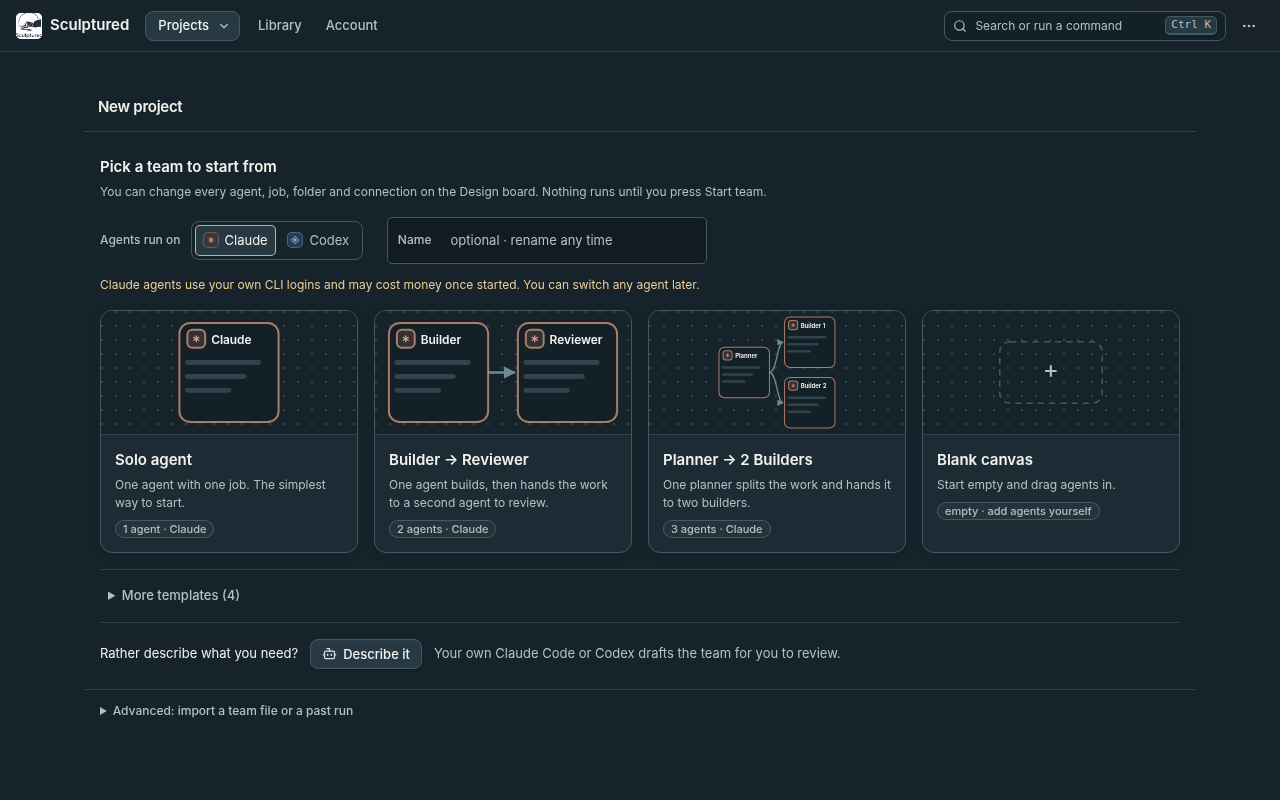
The project opens on the **Design** board.
- **Hosted:** use **Folder on your computer** to enter a full path, such as `/home/you/project` or `C:\Users\you\project`, or choose **Browse…**. Select a computer under **Run on** if more than one is connected. With one connected computer, **Automatic** uses it. An empty folder field uses that computer's first allowed folder.
- **Self-hosted:** choose **Project folder**. Agents use this folder unless you give an agent its own.
Open each agent and edit its **Job**. Give the builder a specific task and tell the reviewer what to inspect. Include how the result should be checked.
For example, ask the builder to fix one reproducible bug and add a regression test. Ask the reviewer to inspect the change, run the relevant tests and report any remaining issues.
The project's status, next to **Start team** in the tab row, reads **Draft · N to fix** while required details are missing; **Things to fix** on the Design board lists them. **Draft · ready to start** means the team can start; it does not assess the quality of the jobs.
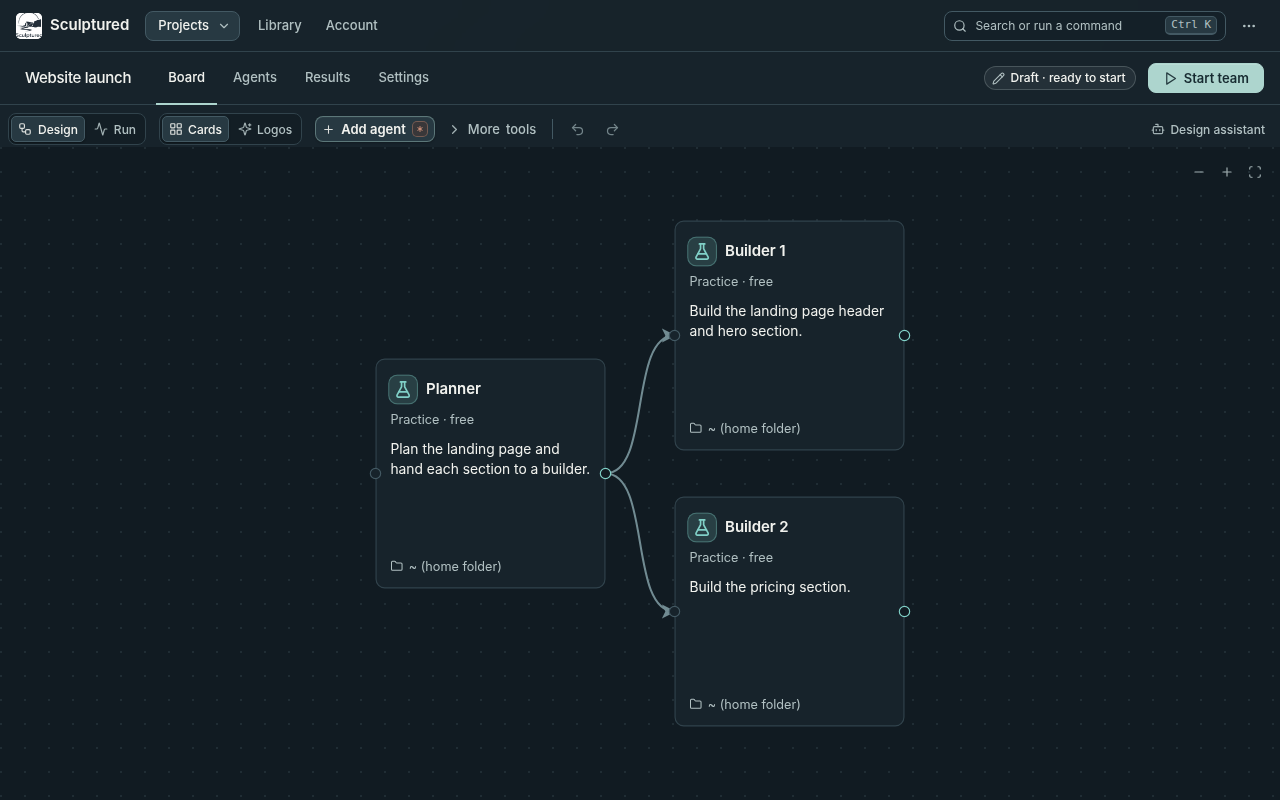
## Run and review the team
Choose **Start team**, at the right of the project's tab row, and review the confirmation. Agents use your own Claude Code or Codex sign-in and may incur charges or consume plan usage. You can set a per-agent **Token limit** before starting; see [Limits and usage](/reference/limits).
Once you confirm, Sculptured opens the **Run** view. The builder receives its Job first. When it finishes a work turn, its final reply is passed to the reviewer along with the reviewer's Job.
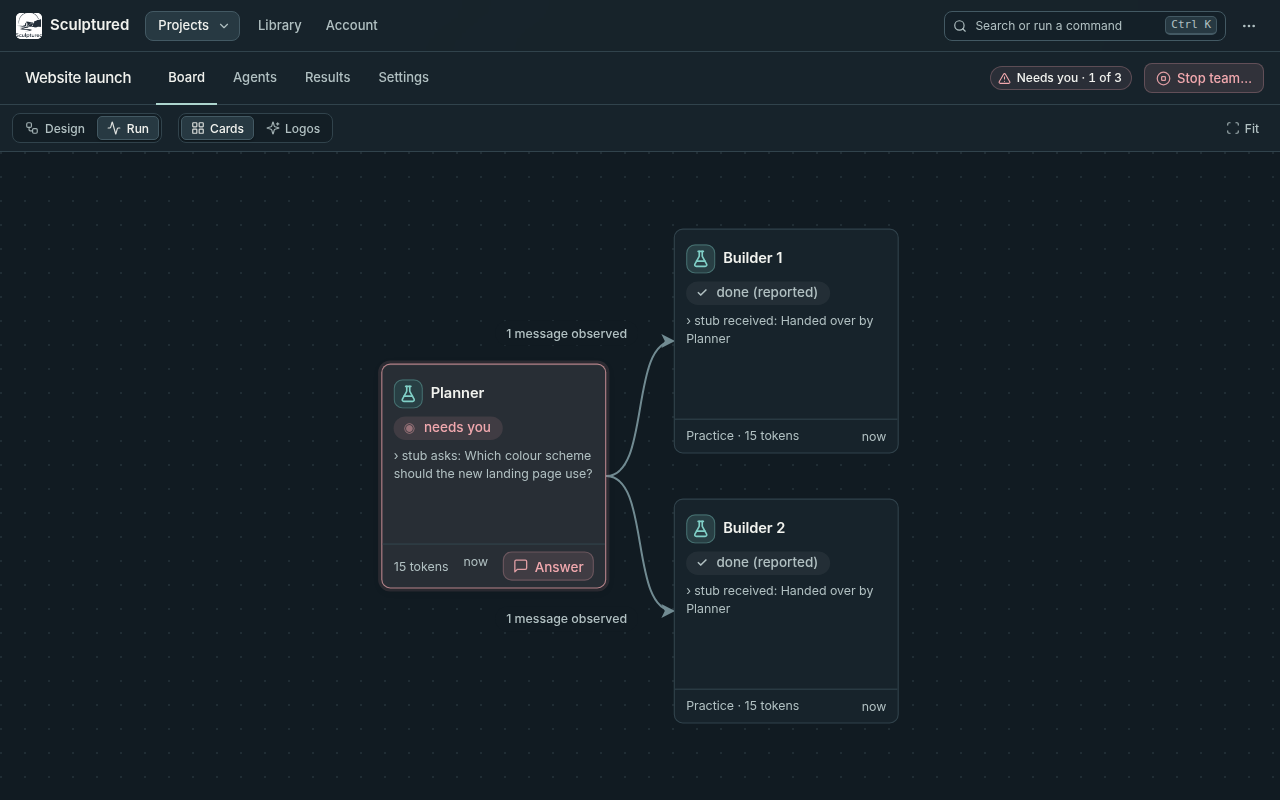
Open an agent to read its conversation and tool calls. Send guidance through its message box, or open **Results › Team conversation** to follow updates across the team.
If an agent shows **needs you**, choose **Answer** and respond on the question card. Use **Allow** or **Deny** for a tool approval. Questions and approvals have timeouts; [Questions and approvals](/guides/questions) explains what happens when they expire.
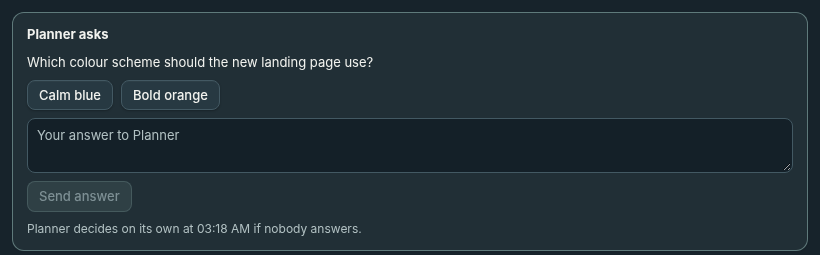
Read the reviewer's findings and inspect the changes and check results. An agent marked **done** has finished a turn; that alone does not establish that the work is correct.
Choose **Stop team** and confirm to close the agents' sessions. Sculptured keeps the run history for later review.
## If an agent cannot start
If an agent says Claude Code or Codex **isn't signed in on the computer**, use its **Sign in** action and complete the provider's sign-in. Then choose **Hand over again** or **Restart this agent**, as offered. See [Troubleshooting](/troubleshooting) for other startup problems.
To use both providers in one team, stop the team, open an agent and change **Runs on** to **Claude** or **Codex**.
## Next steps
Choose roles, write jobs and set limits.
Add agents, connect handoffs and supply shared Input.
Understand handoffs, restarts and run history.
Read tool results, checks and reported progress.
# Set up your account
After you create an account on the hosted service, Sculptured opens **Setup**. It walks you through what agents need before they can work: a computer to run on and a way to reach a model. Your progress is saved on the server, so you can stop and carry on from any device.
Until **Computer** and **Models** are done, the app's pages lead back to Setup. Your account, sign-out, the docs and Community stay open. The other steps are optional; you can skip them and come back later from **Account** or from the **Finish setup** note on Projects.
Accounts that already have a connected computer and a signed-in Claude Code or Codex count as set up and are not sent through Setup.
Setup is for the hosted service. If you run Sculptured yourself, agents use the Claude Code and Codex sign-ins on your own computer; see the [Quickstart](/quickstart).
## The steps
1. **Welcome.** What Sculptured does and what the next steps set up.
2. **Computer.** Connect the computer your agents will run on, with the install command or the Mac app. The page updates when the computer connects, then shows its name and which of Claude Code and Codex it found. If your computer is a cluster, choose **My computer is a cluster** to add it; it counts as your computer. The Mac app skips this step, because the computer is the one it runs on. See [Connect a computer](/connect-a-computer).
3. **Models.** Add at least one model connection. Each has a **Check** that tests it without using any tokens.
4. **More computers** (optional). Add a cluster or connect another computer. Agents on different computers work together by sending messages; your files stay on the computer where they are.
5. **First project** (optional). Creates a Builder → Reviewer team of two Claude agents and opens its board (nothing runs until you press **Start**; once started, the agents use your model sign-in and may cost money), with a few tips pinned to the real screens: an agent card, its computer and folder, **Start**, the Run board, and a question or **Things to fix**. Use **Next**, **Back** or **Skip tour**; Esc ends it. It finishes on Projects.
## Model connections
A model connection is how an agent reaches a model. Each agent's block lets you choose one, the same way you choose Claude Code, Codex or OpenCode. A team uses its first working connection for new agents.
| Connection | What you give | What **Check** does |
|---|---|---|
| **Claude, subscription** | Sign in to Claude Code on a connected computer (paste the code it shows). | Uses the existing Claude Code sign-in check. |
| **Claude, API key** | An Anthropic API key. | Lists the models the key can use. Uses no tokens. |
| **Codex, ChatGPT subscription** | Sign in to Codex with the one-time code it shows. | Uses the existing Codex sign-in check. |
| **Open models — OpenRouter** | An OpenRouter key and the open model OpenCode agents run on it, by its OpenRouter name (for example `moonshotai/kimi-k2.7-code`). The computer needs [OpenCode](/guides/open-models) installed. | Reads the key's own details from OpenRouter. Uses no tokens. |
### How keys are kept
- A key you add is sealed on Sculptured's server, the same way cluster passwords are. It is never shown again; the app shows only its last four characters.
- When an agent with that connection starts, the server sends the key to that agent's process on your computer, and only there. It is not written to the team, its events or logs, and Sculptured does not save it on your computer.
- Team files and MADL documents never carry your connection or its key. When you import a team, you choose which of your connections its agents use.
- Deleting a connection deletes its key.
If a key can't be read when an agent starts, the agent doesn't start, and its card says: "Couldn't read the model connection for *agent*: *reason*. Check it under Setup → Models."
## Costs
A run that uses an API key is billed to your own Anthropic or OpenRouter account, at that provider's prices. Sculptured does not pay for model use. Budget views mark these runs as a pay-per-use key, and their costs as estimates based on the provider's prices. A subscription connection uses your Claude or ChatGPT plan, as before.
A connection's **Check** uses no tokens. The first real use of a key is your first run with it.
# Open models with OpenCode
An agent can run on an open model instead of Claude or Codex. Sculptured drives [OpenCode](https://opencode.ai) for these agents, and OpenCode reaches the model through [OpenRouter](https://openrouter.ai), where one key covers many open models. On the board, these agents carry the OpenCode mark: code brackets around a dot.
## Before you start
OpenCode must be installed on the computer that runs the agent:
```bash
curl -fsSL https://opencode.ai/install | bash
```
On Windows, run `npm install -g opencode-ai`. If it is missing when you press **Start**, Sculptured says so before anything starts and shows the command to paste.
## Choose OpenCode for an agent
Open the agent and set **Runs on** to **OpenCode**. Then choose its model:
- **On the hosted service,** pick one of your OpenRouter connections, shown as **OpenCode via OpenRouter · *name***. The agent runs on that connection's model and key. To add a connection, open **Setup → Models**, fill in **Open models — OpenRouter** with your OpenRouter key and the model's OpenRouter name (for example `moonshotai/kimi-k2.7-code`), then choose **Save and check**.
- **On Sculptured on your own computer,** OpenCode uses its own setup, the same way Claude Code uses your sign-in. Give OpenRouter your key with `opencode auth login`, or set `OPENROUTER_API_KEY`. Choose the model under **Model**, for example **Kimi K2.7 Code**, or type any model OpenCode knows under **Other…**, written as OpenCode names it: `openrouter/z-ai/glm-5.3`.
A team or a group can set a default OpenCode model the same way it sets Claude and Codex models.
If OpenCode does not know the model, the agent does not start and its card says so: "OpenCode could not use the model …; check its name, like openrouter/deepseek/deepseek-chat-v3.1, and the key."
## What the agent can do
OpenCode agents work like Claude Code and Codex agents: they read and change files in their folder, run commands, hand work to other agents, and use Sculptured's agent tools, such as asking you a question, messaging a teammate and writing the status page. You can message, interrupt and stop them, and they pick up where they left off when you start the team again.
- **Sandboxed access** makes an OpenCode agent ask you before it changes a file, runs a command or uses the web. The question comes to you like any other; nobody answering in time lets it go ahead, as for Claude.
- **A sandboxed computer** keeps it inside its folder.
- OpenCode names its session with the agent's own model, so it makes no calls to other models on your key.
## Costs
Runs are billed to your OpenRouter account at OpenRouter's prices. Sculptured shows each turn's cost as OpenCode estimates it, labelled **OpenCode's own estimate**.
Two things are shown as they are, not filled in:
- **Tokens** for an OpenCode turn are those of its last model call. A turn that called the model several times used more.
- **The first turn after the team restarts** has no cost figure: OpenCode reports the session's total so far, not that turn's share.
If your OpenRouter credit runs out, the turn ends and the agent's card says the usage limit was reached, with OpenRouter's own words.
## What is not available yet
- **Fork** (start a new session from a copy of this one) is not offered for OpenCode agents.
- Claude plan budgets don't apply: OpenRouter has no plan. Use token and time limits.
# Connect a computer
In the hosted beta, your agents run on **your own computer**, never on Sculptured's servers. A small program, the **runner**, starts Claude Code or Codex there, captures what they do and sends it to your account. You install and connect it with one command from the **Computers** page.
```mermaid
sequenceDiagram
participant B as Computers page
participant G as Sculptured (your account)
participant T as Terminal on your computer
B->>G: Copy connect command
G-->>B: a one-time key, valid 30 minutes
B-->>T: you paste the command
T->>G: download the runner, check its SHA-256
T->>G: redeem the key
G-->>T: this computer's own identity
T-->>T: allow your home folder, install the background service
T->>G: connect out and stay connected
```
## Connect
Sign in at **app.usesculptured.com** and open **Computers** from the **⋯** menu at the top right.
Under **Connect a computer**, the tab for the system you're browsing from is already selected. Choose another tab if you're connecting a different machine.
Choose **Copy connect command**. It contains a one-time key, so the computer connects without a code to approve. If your browser won't copy it, the command appears on the page for you to select.
Open a terminal on the computer, paste the command and press Enter. When it finishes, it prints `Connected to https://app.usesculptured.com.` and the folders agents may work in.
Back on the Computers page, the computer shows **Connected**, with its access level, its allowed folders and whether Claude Code and Codex are installed and signed in.
Open **PowerShell** (Start menu, type *PowerShell*, press Enter). Paste with right-click or Ctrl+V, then press Enter. The command looks like this:
```powershell
$env:SCULPTURED_KEY=""; irm https://app.usesculptured.com/install.ps1 | iex
```
| | |
| --- | --- |
| Supported | 64-bit Intel or AMD (x64). Windows on Arm is not supported yet. |
| Installs to | `%LOCALAPPDATA%\Programs\Sculptured` (`sculptured.exe` and `sculptured-background.exe`), added to your user PATH. No admin rights needed. |
| Keeps running with | A logon task named **Sculptured runner** in Task Scheduler. It starts when you sign in to Windows and restarts if it fails. It runs without a window. |
| Runner data | `%USERPROFILE%\.sculptured\runner` |
Agents run natively on Windows, through the Windows versions of Claude Code and Codex. Folder paths are full Windows paths, such as `C:\Users\you\project`.
Open a terminal. Paste with Ctrl+Shift+V, then press Enter. The command looks like this:
```bash
curl -fsSL https://app.usesculptured.com/install.sh | sh -s -- --key
```
| | |
| --- | --- |
| Supported | The processors the Computers page offers a build for. |
| Installs to | `~/.local/bin/sculptured`. No `sudo` needed. If `~/.local/bin` isn't on your PATH, the installer says so. |
| Keeps running with | A systemd user service, `sculptured-runner`, in `~/.config/systemd/user/`. It starts when you log in and restarts five seconds after a failure. |
| Runner data | `~/.sculptured/runner` (owner-only) |
Apple silicon and Intel Macs, with macOS 11 or later. There are two ways to connect a Mac:
- **The app:** download it and sign in there. Agents run while the app is open. See [Install the Mac app](#install-the-mac-app) below.
- **Terminal:** copy the connect command, as on Linux, and paste it into Terminal. The runner keeps itself running in the background with a LaunchAgent, `~/Library/LaunchAgents/dev.sculptured.runner.plist`, even when no window is open.
macOS keeps Desktop, Documents and Downloads from background programs until you allow them. If a project is in one of those, allow Sculptured in *System Settings → Privacy & Security*, under **Files and Folders** or **Full Disk Access**. Folders elsewhere in your home folder need nothing.
Self-hosted Sculptured already runs on Apple silicon Macs: see [Run it yourself](/operations).
## Install the Mac app
On a Mac, the sign-in page and the Computers page both offer **Download Sculptured for Mac**. One download works on Apple silicon and Intel Macs.
Open the download (`Sculptured-mac.dmg`) and drag **Sculptured** onto **Applications**. Then open it from your Applications folder, not from the download window.
The first time, macOS says **“Sculptured” Not Opened**: *Apple could not verify “Sculptured” is free of malware…*. This is because the app isn't signed with an Apple Developer ID yet. Click **Done**, not Move to Trash.
Open *System Settings → Privacy & Security* and scroll down to **Security**. Next to *“Sculptured” was blocked to protect your Mac*, click **Open Anyway**, enter your Mac password, then click **Open**. You only do this once; after that it opens normally.
In the app, under **Sculptured account**, the address is already filled in. Choose **Sign in to my account**, sign in, and approve this computer. It appears on the Computers page, and agents run on it while the app is open.
If Google sign-in is refused inside the app, sign in with GitHub or with your email and password instead.
## What the command does
1. Downloads the runner for this system and checks its SHA-256 checksum. If it doesn't match, nothing is installed.
2. Installs it for your user only, with no admin rights.
3. Redeems the one-time key, which gives this computer its own identity in your account. The key works once, for 30 minutes.
4. If no folders are allowed yet, allows your **home folder**.
5. Installs the background service and starts it, finding Claude Code and Codex on this computer so the service can launch them.
Running the command again is safe. It updates the runner in place, stops the old one first, and reuses the computer's identity while it is still connected, so the computer is not added twice.
### What stays on the computer
The runner keeps its settings in its own owner-only folder:
| File | Holds |
| --- | --- |
| `device.json` | This computer's identity: its id and key for your account. The server keeps only a hash of the key. |
| `runner.json` | Your rules: allowed folders, access level and what else the account may do here. Only you change it, on this computer. |
| `hostd/` | The runner's working state. |
## Choose where agents may work
The runner refuses to start an agent outside its **allowed folders**, whatever the server asks. By default that's your home folder. To allow another folder:
```bash
sculptured allow /path/to/folder
```
Then restart the runner so running agents see it: run the connect command again, or restart the service (`systemctl --user restart sculptured-runner` on Linux).
When you design a project, set **Folder on your computer** to a full path inside an allowed folder, or leave it empty to use the computer's first allowed folder.
### Access level
Allowed folders decide where an agent *starts*. The access level decides what it may do once running.
| Access | What agents may do |
| --- | --- |
| **Full access** (default) | Act as you do on this computer, using the CLIs' full-access modes. |
| **Sandboxed** | Claude asks before risky actions; Codex writes only inside its folder. |
To change it, connect with `--sandboxed` or `--full-access`. The server can lower access for a team but never raise it above this.
### Other things the account may do here
Besides running agents, your account may ask this computer for a few local operations. All are on by default (checks are off when sandboxed):
| Capability | Lets the account |
| --- | --- |
| `git` | Show and commit Git changes in project folders. |
| `copies` | Give agents their own Git working copies. |
| `checks` | Run a workflow's check commands, such as the tests. |
| `cli-sign-in` | Start Claude Code or Codex sign-in from the browser. |
| `plan-usage` | Read your Claude or Codex plan usage. |
| `generate` | Draft a team with **Describe it**, using one tool-less call to your own CLI. |
Turn one off with `--disable ` (or on with `--enable`) when you run `sculptured connect`.
## Sign in Claude Code and Codex
Agents use the Claude Code and Codex sign-ins **on the computer that runs them**. Install them there first. Sculptured finds them on your PATH and in the usual install places, including when you install one after connecting. When one is missing, Sculptured shows its official install command for each system:
| | Mac or Linux (Terminal) | Windows (PowerShell) |
|---|---|---|
| Claude Code | `curl -fsSL https://claude.ai/install.sh \| bash` | `irm https://claude.ai/install.ps1 \| iex` |
| Codex | `curl -fsSL https://chatgpt.com/codex/install.sh \| sh` | `irm https://chatgpt.com/codex/install.ps1 \| iex` |
If one isn't signed in, sign it in once, from any browser (it doesn't have to be on that computer):
- **Codex** shows a one-time code. Open its sign-in page on any phone or computer, sign in, and enter the code.
- **Claude Code** opens its sign-in page. If the page ends on a code, paste it into the box under **Sign in** and choose **Send code**.
You can start a sign-in from:
- **Start team**: before a team starts, Sculptured checks that its computer has the Claude Code or Codex its agents use, signed in. If not, it says which and lets you sign in right there, then **Start team** again;
- the **Computers** page (or **Account** when Sculptured runs on your own computer): **Sign in** next to it;
- an agent that stopped because it isn't signed in: **Sign in to Claude Code** (or Codex), then **Hand over again**; or
- a terminal on that computer: run `claude` or `codex login`.
Every agent on that computer can then use it.
## Run agents on more than one computer
A team runs on the computer chosen under **Run on** in its Design panel. Any agent can run somewhere else: open the agent and choose its **Computer** (just above its folder), such as a desktop with a GPU or a cluster's login node. A team can spread over several computers this way: one agent at NERSC, one at NCSA, one on a lab machine and one on your own computer. When every agent has its own computer, the team needs no **Run on**.
- **Each agent has its own folder on its own computer.** The project folder is a path on the team's computer, so an agent on another computer never uses it. Choose the agent's folder with **Choose…**, which browses that agent's computer (the field says **Folder on** *its computer*), or leave it empty: the agent then works in that computer's own folder, the first folder allowed there (your home folder on a cluster you added from the web app).
- **Messages and handoffs** reach the agent on its computer, and its questions come to you as usual.
- **Files stay where they were made.** What an agent hands on is its reply: text and file paths, never the files. Data too large to move, such as terabytes on a cluster's scratch, stays where it is; agents describe it by path, size and checksum. Put shared code in a git remote every computer can reach.
- **Start needs every computer it uses.** If one is not connected, Start says which, and which agent runs there.
- **Agents an agent starts** run on the same computer as the agent that started them.
Run Sculptured only where the computer's owner allows long-running programs. Many clusters forbid them on login nodes: ask your cluster's support first.
### Add a cluster from the web app
On the hosted service you can connect a cluster without installing anything yourself: Sculptured's server signs in to the login node over SSH, sets up the runner there and keeps it running.
1. **Check your site's rules first.** Many clusters limit long-running programs, or AI tools, on login nodes. The runner is small and mostly waits, but some sites want it under `scrontab` or on a service node instead.
2. On **Computers**, choose **Add a cluster**. Give the login node's host name, the port (22 unless your site says otherwise), your user name there and, if you reach it through a jump host (bastion), that host too.
3. Choose how Sculptured signs in. Each choice is a card; the selected one is highlighted.
- **Key Sculptured makes** (recommended where the site takes keys). Sculptured makes a key pair just for this cluster and shows its public half, with the exact line to add to `~/.ssh/authorized_keys` on the login node, a command that adds it, and the line for the jump host (which allows a connection to the login node only). Add it, then choose **Connect**. The private half never leaves the server. If the site takes no keys at all, the card says so and tells you to add the cluster again with **Password**.
- **Password**, for sites that take no keys. Codes and Duo pushes are asked for when you connect.
- **Certificate from your site**: a private key and its `-cert.pub` file, from NERSC's `sshproxy`, Smallstep's `step ssh`, or a Teleport-style CA. The card shows whom the certificate names and when it ends; from 2 hours before then it asks you to paste a new one (**Paste a new certificate**), and Sculptured never tries one that has ended.
- **Your own private key**, with its passphrase if it has one. The passphrase is used once to read the key and is not kept.
Sculptured tries what the login node offers in this order: the key or certificate, then questions (keyboard-interactive), then the password, and goes on through a chain such as a password followed by a code.
Saved keys and passwords are encrypted with a server key kept outside the database, are never shown again, and are deleted when you remove the cluster.
4. If the cluster asks for a code when anyone signs in (Duo, an OTP), the card shows its question; type the answer there. It is used once and never stored. The card shows every question the site asks at once, hides answers the site asks to hide, turns a sign-in link (a web or device-code sign-in) into a link, and counts down the time left to answer. For a Duo push, type `1` (or `push`) and approve on your phone: Sculptured waits up to 2 minutes for the approval. If a site asks for your password and a code in one field, type both as the site says.
5. Choose how long Sculptured stays signed in (**Keep signed in for**, 12 hours unless you change it, at most 7 days; 0 keeps nothing). After you answer a code once, Sculptured keeps that SSH connection open and restarts the runner over it without asking again. The card says **Signed in until …**; **Sign out** closes the connection, and so does removing the cluster. Many sites end sessions sooner, and a restart of Sculptured's server closes it too: the next restart then asks for your code.
**Sites we know.**
| Site | Host | Sign in with |
|---|---|---|
| NERSC Perlmutter | `perlmutter.nersc.gov` | **Certificate from your site**: run NERSC's `sshproxy.sh` on your computer and paste the key and `-cert.pub` it makes (good for 24 hours). Or **Password**, then your one-time code. |
| NCSA Delta | one login node, such as `dt-login03.delta.ncsa.illinois.edu` | **Password**, then approve the Duo push. Delta takes no SSH keys. Use one login node, not `login.delta.ncsa.illinois.edu`: tmux sessions live on one node, and the alias can send a reconnect to another. |
Both sites let you start agents from a login node, for light work only: compute goes through Slurm (`sbatch`, `srun`). NERSC asks that agents run under your supervision, work in `$HOME` or `$SCRATCH`, and not change `$CFS` without your permission ([NERSC's guidance on coding agents](https://docs.nersc.gov/development/coding-agents/)). Delta stops programs that look like applications on its login nodes ([Delta's login-node rules](https://docs.ncsa.illinois.edu/systems/delta/en/latest/user_guide/citizenship.html)).
**What can't work from a web app.** Hardware security keys (FIDO keys such as `sk-ed25519`), Kerberos (GSSAPI) tickets and SSH agent forwarding all need your own computer, so Sculptured's server cannot use them. If your site requires one of them, [set up the cluster yourself](#set-up-a-cluster-yourself).
Sculptured then copies the runner to `~/.sculptured/bin` on the login node, writes its own key to `~/.sculptured/runner/device.json` (readable only by you), starts it in a tmux session named `sculptured-runner` (with `nohup` where there is no tmux), runs `sculptured doctor` there and shows the report. From then on the cluster is one of your computers: agents can run on it, and messages and handoffs reach them as on any other computer.
**Keeping it running.** If the cluster's runner loses its link for more than a few minutes, for example after the login node restarts, Sculptured signs in again and restarts it. While the connection is still signed in, this needs no code. Otherwise a cluster that asks for a code at sign-in can't be reconnected without you: its card says **Reconnect needs your code** until you choose **Reconnect** and answer.
**What Sculptured did.** Each cluster's card lists every SSH action with its time: connected, signed in, installed, paired, started or restarted, and anything that failed, with the reason. It also shows the login node's host key fingerprint. Sculptured saves that key the first time it connects and refuses to sign in if it ever changes.
**Remove** deletes the saved key or password and revokes the runner's key; the runner on the cluster stops by itself. Remove the line you added to `~/.ssh/authorized_keys`, and `~/.sculptured` if you like.
### Set up a cluster yourself
1. Install Sculptured on the login node and run `sculptured doctor`. Under **This computer** it says whether the runner keeps running after you log out, whether the node reaches your Sculptured account, Anthropic and OpenAI, and which proxy settings are set (names only).
2. If user services don't run there (common on clusters), keep the runner in tmux, where your site allows it: `tmux new -d -s sculptured 'sculptured connect '`. Some sites offer scheduled jobs for this instead, such as NERSC's `scrontab`.
3. Give the agent that runs there what it needs to know about the scheduler: add Slurm or PBS skills with **Add from a catalog** (an HPC centre's catalog, or any GitHub repository of skills), or an existing Slurm or PBS MCP server with **From the MCP Registry**. The agent then submits and watches jobs itself (`sbatch`, `squeue`, `sacct`, or `qsub`, `qstat`), and every call shows in its timeline.
Compute nodes often have no internet; an agent can run only where the node reaches Anthropic or OpenAI.
## Use one computer with several accounts
A computer can run agents for more than one account, for example your own and a test account. Copy the connect command from the other account's **Computers** page and run it on the same computer. Sculptured sees that the computer is already connected to a different account and adds this one beside it: each account gets its own runner, its own folder (`~/.sculptured/runners/`) and its own background service, so both run at once. Running an account's command again reconnects its existing runner instead of adding the computer twice.
The new runner starts with the same allowed folders and access as the computer's first one; change them with `sculptured allow … --data-dir ~/.sculptured/runners/`.
## Stop agents when something stops responding
**Stop** and **Stop everything now** always finish in Sculptured, even when the computer running the agents is offline. Its agents are marked stopped at once. If one is still running on that computer, the computer ends it as soon as it reconnects.
To end them on the computer itself, without Sculptured, run this there. It works while the computer is offline:
```bash
sculptured stop
```
It ends, like Ctrl+C, every agent this computer's runner started, together with the commands they started, and lists them. It only touches processes the runner started for agents. Pass `--data-dir` if you connected with one. It works when the runner itself has stopped responding, and covers every account's runner on the computer.
## Disconnect or remove
To disconnect a computer, choose **Disconnect** next to it on the Computers page. Its identity stops working at once. To connect it again later, copy a new command and run it. The runner on that computer stops and turns its own login service off, so it is not started again at every login. Connecting again turns the service back on.
There is no uninstall command yet. To remove the runner by hand after disconnecting:
```powershell
Unregister-ScheduledTask -TaskName 'Sculptured runner' -Confirm:$false
$bin = Join-Path $env:LOCALAPPDATA 'Programs\Sculptured'
Get-Process sculptured, sculptured-background -ErrorAction SilentlyContinue | Where-Object { $_.Path -like "$bin*" } | Stop-Process
Remove-Item -Recurse $bin, "$env:USERPROFILE\.sculptured\runner"
```
```bash
systemctl --user disable --now sculptured-runner
rm ~/.config/systemd/user/sculptured-runner.service ~/.local/bin/sculptured
rm -r ~/.sculptured/runner
```
## Connect without a key
You can also run `sculptured connect https://app.usesculptured.com` yourself. It prints a link and a code such as `WXYZ-2345` and opens your browser. Check that the code matches, then choose **Allow**. Add `--install-service` to keep it running in the background, `--allow ` to choose folders up front, and `--name` to set how it appears on the Computers page. All options are on the [CLI reference](/reference/cli).
Only approve a code you just saw on your own computer. Approving a code someone sent you would connect *their* machine to your account.
## Troubleshooting
The Computers page offers a command only for systems with a published build: today, Windows on x64, Linux and macOS. The installers also stop, without installing anything, on Windows on Arm or on an unsupported Linux processor.
Each command works once, for 30 minutes. Choose **Copy connect command** again and paste the new one.
Wait ten seconds; the page refreshes itself. If it still doesn't connect, run the command again. It stops any old runner before replacing it. On Linux, `systemctl --user status sculptured-runner` shows whether the service is running. If the command printed "Wrote …, but could not start it", start the service yourself, or run `sculptured connect https://app.usesculptured.com` to stay connected while the terminal is open.
The CLI is installed but has no sign-in on that computer. Choose **Sign in to Claude Code** (or Codex) on the agent, finish signing in, then choose **Hand over again**. See [Sign in Claude Code and Codex](#sign-in-claude-code-and-codex).
Install it on the computer that runs the team, then start the agent again. You don't need to reconnect: the runner looks for the CLI each time an agent starts.
The project's folder is outside the computer's allowed folders. Choose a folder inside one of them, or allow it with `sculptured allow ` and restart the runner. The message lists the allowed folders.
Folder paths must be full paths on the computer that runs the team, such as `/home/you/project` or `C:\Users\you\project`. Check the spelling, or choose **Browse…**.
The browser lost its live connection to your account. Your agents are not affected and keep working. Sculptured keeps trying; choose **Try again** to reload. This usually means a dropped network connection, or a network that blocks live connections.
Nothing is lost. Agents' calls wait for the connection to return, questions stay open, and a **Stop team** you press meanwhile happens as soon as the computer is back. See [When a computer goes offline](/guides/offline).
More problems and fixes are on [Troubleshooting](/troubleshooting).
## Next steps
Run a first team on your computer.
What the server can and cannot do on your computer.
# Concepts
A **project** holds a team's design and run history. Its **agents** work in folders you choose and pass results along the connections you draw. This page explains those parts and the labels you will see as the team runs.
## Designing
| Word | What it is |
| --- | --- |
| **Project** | One team's design and its history. The Projects page, and the **Projects** menu in the top bar, list your projects. |
| **Team** | The agents of a project and the connections between them, started and stopped together. |
| **Agent** | One worker with a name, a **Job** and a **Folder**. It runs on **Claude** (Claude Code), **Codex** or **OpenCode** (open models, see [Open models with OpenCode](/guides/open-models)). |
| **Job** | The agent's assignment, delivered when its work begins. An agent waiting for a handoff receives its Job with that handoff. See [Designing teams](/guides/agent-design). |
| **Folder** | Where the agent works. Agents use the project folder unless you give one its own. On a connected computer it must be inside a folder that computer allows. |
| **Group** | A box of agents inside a team, with its own color. Save a group to your **Library** to reuse it in other projects: see [Reusable groups](/guides/groups). |
| **Input** | Shared goals, links, notes and constraints. In an ordinary team, selected agents receive it; in a workflow, the dispatcher reads it when the team starts. |
### Connections
Arrows on the board say how agents relate.
| Arrow | Effect |
| --- | --- |
| **hands work to** | When the source agent finishes a work turn, Sculptured passes its final reply to the receiving agent. The source starts first. |
| **reports to** | Design intent only. It documents the hierarchy; nothing is enforced. |
| **watches** | Design intent only. Nothing is enforced. |
A **handoff** is one piece of work passed along a "hands work to" arrow, recorded with its message. An arrow on the design does not prove a message was sent: the Run view shows the handoffs that actually happened.
### Workflows (Advanced)
A **workflow** replaces ordinary arrows with stages. A **dispatcher** agent reads Input and splits the work into **items**. Each item moves through **stages**, and routes can branch on the outcome or loop back for another round, up to a round limit. A stage is run by one of:
| Stage | Settled by |
| --- | --- |
| **Agent** | An agent, which reports the outcome. |
| **Review panel** | Several reviewers, whose verdicts are combined. |
| **Check** | A command Sculptured runs, such as `npm test`. Its result is verified evidence. |
| **Person decides** | You, with approve or rework and an optional note. |
| **Merge** | Sculptured, merging the item's branch back. A conflict sends it back. |
An **assembly** agent finishes once every item is done. See [Workflows](/guides/workflows).
## Running
| Word | What it is |
| --- | --- |
| **Start team** | Checks the design, then starts each agent in order. The project's status, next to **Start team**, reads **Draft · N to fix** until the design can start, then **Draft · ready to start**. |
| **Design** and **Run** | The two views of a project. **Design** is the editable board. **Run** shows the agents that are running now, what each is doing, and the handoffs between them. |
| **Run** | One start-to-stop of a team. Each run's history is kept. |
| **Question** | An agent asking you for a decision. It shows as **needs you** until you answer, or until it times out and the agent decides for itself. See [Questions and approvals](/guides/questions). |
| **Managed subagent** | An agent another agent started with Sculptured's tools while the team runs. It shows in Run under its parent. |
| **Own copy** | An agent's own Git working copy of the project, so agents working at once don't overwrite each other. |
| **Token use** | The tokens each agent's CLI reports, shown live. Limits and estimates are on [Limits and usage](/reference/limits). |
Agent states such as *running*, *stopping* or *needs attention* are listed on [Agent states](/reference/states).
## Computers
| Word | What it is |
| --- | --- |
| **Computer** | One of your machines, connected to your account. The **Computers** page lists them. |
| **Runner** | The background program on a computer that starts the agents, captures what they do and passes messages. Installed by the [connect command](/connect-a-computer). |
| **Allowed folders** | The folders a computer lets agents start in, decided on that computer. By default, your home folder. Add more with `sculptured allow `. |
| **Access** | How much agents may do once started. **Full access** (the default) lets them act as you do. **Sandboxed** makes Claude ask before risky actions and keeps Codex writing only inside its folder. |
| **Run on** | Which computer runs a team. With one connected computer, **Automatic** uses it. |
The server can ask a computer to do something, but the computer has the last word. It refuses agents outside its allowed folders, and the server can lower access but never raise it.
## Evidence and provenance
Progress labels describe where the work stands: **Planned**, **In progress** or **Blocked**, for example. Evidence labels describe how Sculptured obtained a fact. Read them together: an agent can finish a task without its result having been checked.
| Word | Meaning |
| --- | --- |
| **Agent-reported** | The agent said so, for example "done" or "tests pass". A claim, not proof. |
| **Captured** | Sculptured recorded it directly, such as a tool call and its result. |
| **Observed** | Seen on disk or in Git, such as a changed file. |
| **Estimated** | Worked out by a rule of thumb, such as a token count from text length. |
| **Verified** | A check Sculptured ran passed; the result covers what that check tests. |
| **Unknown** | No supporting information is available. |
A file existing, a tool succeeding or an agent saying "done" does not show that the work is correct. Only a check that ran counts as verified.
## Sharing
| Word | What it is |
| --- | --- |
| **Library** | Your private collection of reusable groups. |
| **Community** | The shared catalog. A published group is a **block**: a definition only, which never starts agents by itself. |
| **Team file** | A project exported as a [MADL](/guides/madl) document (`.madl.yaml`), an open format other tools can read. |
## How the parts connect
```mermaid
flowchart LR
B["Your browser"] -- "HTTPS, signed in" --> G["Gateway: app.usesculptured.com"]
G -- "your requests only" --> I["Your own Sculptured: board, journal, workflows"]
R["Runner on your computer"] -- "connects out through the gateway" --> I
I -- "start, message, stop" --> R
R --> C["Claude Code"]
R --> X["Codex"]
C -- "read and edit" --> F["Allowed folders"]
X -- "read and edit" --> F
```
The hosted service signs you in and provides a separate Sculptured instance for your account's projects and run history. Your computer's **runner** opens an outbound connection to the service, so you do not need to open an inbound port. Agents run on your computer using its CLI sign-ins and folder permissions.
```mermaid
flowchart LR
B["Your browser"] -- "http://127.0.0.1:4410" --> S["sculptured serve: board, journal, workflows"]
S -- "start, message, stop" --> R["Local runner"]
R --> C["Claude Code"]
R --> X["Codex"]
C -- "read and edit" --> F["Your folders and Git"]
X -- "read and edit" --> F
R -- "every event" --> S
```
`sculptured serve` starts the app server and a runner on the same machine. Team designs and run history are stored locally. Claude Code and Codex still communicate with their providers; see [Privacy](/privacy) for the data flow.
## Next steps
Install the runner and choose folders.
Put these pieces together.
What happens when you press Start team.
Every state an agent can be in.
# Designing teams of agents
Start with **one agent** and a clear task. Add agents when separate roles, independent work or a second review will help. For each agent, define what it owns, what it passes on and how you will check the result. More agents also mean more coordination and token use.
Four shapes that cover most work.
Runs on, model, permissions, token limit, check.
A template you can copy.
## When to split work
These four reasons can help you decide whether to split the work:
| Reason | Example |
| --- | --- |
| **Specialization** | A researcher, a writer and a reviewer with different instructions or models. |
| **Isolation** | A reviewer with separate instructions and restricted permissions. See the permission limits below. |
| **Parallelism** | Independent chapters or components built at the same time. |
| **Context** | Each agent keeps a small context instead of one agent carrying everything. |
If none applies, refine the single agent's Job before expanding the team.
## Pick a pattern
| Pattern | Shape on the board | Use for | Watch |
| --- | --- | --- | --- |
| Pipeline with a review loop | Builder → Reviewer ↺ | Work that needs implementation and review | Bound the revision rounds |
| Supervisor and workers | Lead → Workers → Lead | Separable parts that one agent integrates | Keep the lead's context manageable |
| Independent reviewers | Draft → Reviewer A + B → Editor | Quality over cost | Reviewers must not see each other's verdicts |
| Dynamic dispatch | Coordinator → spawned specialists → Assembly | The number of pieces is known only at run time | Set spawn, depth and token limits first |
The built-in templates cover several of these: **Builder → Reviewer**, **Planner → 2 Builders**, **Independent reviewers**, **Design and revise** and **Adaptive support team**. The [CS2680 pattern catalog](/guides/pattern-catalog) has a ready-made block for each slide.
```mermaid
flowchart LR
B["Builder"] -- "done" --> R["Reviewer"]
R -- "changes" --> B
R -- "approved" --> D(("item complete"))
```
Plain arrows can loop, for example a reviewer handing work back to a builder, as long as an agent outside the loop hands work into it. Each piece of work goes round such a loop at most 3 times before it stops and says so. A review loop with named outcomes and a round limit you set, like the one above, is a [workflow](/guides/workflows).
## Set up each agent
Select an agent on the [board](/guides/board) to open its details. These settings decide what it costs and what it can touch.
### Runs on: Claude or Codex
| Choice | What runs | Model selection |
| --- | --- | --- |
| **Claude** | Claude Code, with your own sign-in | Choose from the model menu or use Claude's default. |
| **Codex** | Codex, with your own sign-in | Use the default, select a listed model or enter a model ID. |
You can also set models for the whole team (**Team models**) or for a group (**Group models**). An agent's own choice wins, then its group's, then the team's. **All agents run on** switches every agent at once, and Ctrl+Z undoes it.
You can use different providers for the builder and reviewer. Open each agent and set **Runs on** individually.
### Permissions
Under **Advanced** in the agent's details:
| Setting | Claude Code | Codex |
| --- | --- | --- |
| **unrestricted** (the default) | Runs without permission prompts | Approvals off, no sandbox |
| **restricted** | Permission prompts come to you as approvals | Asks before untrusted actions |
Sculptured's own tools, including questions, reports and workflow calls, do not raise permission prompts. **Restricted** adds the CLI's approval controls; it does not make an agent read-only. Claude tool approvals are allowed automatically if their timeout expires. Read [Questions and approvals](/guides/questions) before relying on those controls.
### Token limit
**Token limit** caps the tokens an agent uses in one run. Choose which tokens count (**all tokens**, **all except cache reads**, or **output only**) and whether the limit should **include agents it spawns**. When the agent reaches the limit, Sculptured asks it to wrap up with a summary, then stops it.
Usage is reported after each turn, so an agent can go over its limit by up to one turn. Leave that margin when you set it.
### Check
**Check** is a command Sculptured runs in the agent's folder after each turn the agent finishes, for example `npm test`. Exit code 0 shows "check passed"; anything else shows "check failed", with its output. A check result is verified by Sculptured; the agent's own "done" is only agent-reported. The command runs as you, with your permissions.
### Briefing
With its first message every agent gets a **briefing**: by default (**full**) the team, its neighbours' jobs, the workflow and the working rules. The agent keeps it for the whole conversation and reads it again at every step, so it costs tokens on every call. Choose **minimal** for agents that only need their own assignments, such as workflow workers: they get only their role, their own Job and contract, their own skills, and one line on how to finish. Helpers a minimal agent starts are briefed minimally too.
### Skills
Instructions the agent loads only when it needs them, such as your house style or how to run a release. Until then only their names and descriptions are in its context. See [Skills and tools](/guides/skills).
### Contract and tools on its computer
Under **Advanced**, an agent's **Contract** says what it reads, writes and decides, and the values it shares with others; see [Contracts](/guides/budgets#contracts-what-each-agent-reads-writes-and-decides). **Kindex memory** and **Signet-Eval policy checks** give it tools installed on its computer; see [Skills and tools](/guides/skills#tools-on-the-agents-computer-kindex).
### When it restarts
Under **Advanced**, **When it restarts** sets what happens when the agent's session has to start again: **resume if possible**, **start fresh**, or **wait for me to choose**.
## Write each Job like a task spec
An agent's **Job** defines its assignment. An agent that starts immediately receives the Job as its first message. An agent waiting for upstream work receives it with its first handoff; you can still edit the Job while it waits. Use this template:
```text
Objective:
Output:
Done when:
Boundaries:
Budget:
Hand on:
```
The next agent receives the final reply from the completed work turn. Ask for a concise handoff that includes the result, relevant file paths, checks run and unresolved issues. Keep longer outputs in files.
When completion can be tested by a command, put that command in the agent's **Check** field. Set the actual **Token limit** in the agent's settings; a budget written in the Job is an instruction, not an enforced limit.
An agent with no Job waits: your first message to it becomes its work, and when it finishes, its result is handed on.
## Let an agent draft the team
On a new project, **Describe it** sends your description to your own Claude Code or Codex, which drafts the team. It can ask you questions first. You choose the team size, the agent kinds and a shape, then keep or drop agents and arrows before anything is created. The team panel shows "Generated by Claude Code from a description" (or Codex) and "not run yet" until it runs. Review every Job: a drafted team is a starting point, not a checked design.
## What goes wrong
| Failure | What it looks like | Prevention |
| --- | --- | --- |
| Overlap | Two agents edit the same file | Give each agent its own files in its Job |
| Gaps | Nobody owns integration or tests | Name one owner for the final check |
| Hidden dependencies | "Parallel" pieces wait on each other | Make it an arrow, or a dependent workflow item |
| Unmergeable outputs | Results arrive in different formats | Specify the Output format exactly |
| Lost context at aggregation | The lead summarises away details | Write results to files and pass paths |
| Loops | Agents message each other without end | Use workflow routes with **Most rounds per item** |
Finish with an agent **Check** or a workflow check stage where appropriate. Read the result alongside the agent's report to see what was tested and what still needs review.
The patterns and task-design guidance draw on Juncheng Yang's [CS2680 Agent Design II](https://cs2680.com/slides/5_agent_design_2.pdf), especially slides 6, 9–16, 21, 24–25 and 36. This guide is not endorsed by the course.
## Next steps
Add agents, draw arrows and clear what blocks Start.
Stages, review loops, checks and people in the loop.
Complete teams to start from.
Team size, spawn depth and token limits.
# Compose on the board
Use the **Design** board to build a team: choose its working folder, add agents, write their jobs and connect their handoffs. The **Run** tab opens after the team starts and shows its activity.
Drag, click or right-click to add Claude or Codex.
Arrows decide who starts after whom; the Input says what it's all for.
What Needs setup means and how to clear it.
## Start a project
Press **New project** on the Projects page or in the **Projects** menu of the top bar, or press n anywhere except the Design board (there, n adds an agent). The **New project** page offers:
- **Agents run on:** Claude or Codex, for every agent in the template.
- **name:** the project's name. Leave it empty to use the template's.
- **Describe it:** your own Claude Code or Codex drafts a team from a description. See [designing teams](/guides/agent-design#let-an-agent-draft-the-team).
- **Templates:** Solo agent, Builder → Reviewer, Planner → 2 Builders, Blank canvas, Textbook creator, Adaptive support team, Independent reviewers, and Design and revise. See [examples](/guides/examples).
- **Advanced:** import a team file (`.sculptured-team.json`, or an OpenRig YAML file), or import a past run (`.sculptured-session.jsonl`), which opens read-only in Results › History. See [team files](/guides/team-files).
Claude and Codex agents use your own CLI logins and may cost money once started.
## Rename the project
Double-click the project name next to the **Design** and **Run** tabs, or focus it and press Enter or F2. Type the new name and press Enter. Esc puts the old name back. You can also edit **Team name** in the team details.
## Choose folders
Every agent needs a folder to work in. Set one folder for the whole project and every agent inherits it, unless you give an agent its own.
In the team details, **Folder on your computer** takes a full path on the computer that runs the team, for example `/home/you/project` or `C:\Users\you\project`. **Browse…** lists the folders that computer allows. The folder must be inside one of them (`sculptured allow ` adds more). Leave it empty to use the computer's first allowed folder.
**Run on** picks the computer. **Automatic** uses your only connected computer. With none connected, follow **Connect one**. See [connect a computer](/connect-a-computer).
In the team details, **Project folder** → **Choose project folder…** opens a folder picker. **Clear project folder** removes it. If some agents use their own folders, **Use project folder for all agents** resets them.
## Add agents
The Design toolbar above the board has **Add agent**, which adds the kind most of the team runs on (Claude in a new team). **More tools** next to it shows the other kind, **Codex**. Drag either onto the board, or click it to add the agent in the next free spot. You can also right-click the board and choose **Add a Claude agent here**. A new agent opens its details so you can name it and write its Job.
Cards go exactly where you drop them. A card dragged close to another lines up with it: the same row or column, or the usual spacing beside it.
Each card shows the agent's name, what it runs on, its model, and its Job. A card with no Job says "No job yet. Select the agent to write one."
| In the agent's details | What it sets |
| --- | --- |
| **Name** | What the team and you call it. Two agents can't share a name. |
| **Job** | Its first message when the team starts. See [writing a Job](/guides/agent-design#write-each-job-like-a-task-spec). |
| **Folder** | Its own folder, or **Use project folder**. |
| **Runs on** and model | Claude or Codex, and which model. |
| **Hands work to** | Who receives its finished work (**Connect to…**). |
| **Group** | Which group it sits in. |
| **Token limit**, **Check** | A token cap and an after-turn command. |
| **Advanced** | **When it restarts** and **Permissions**. |
The other buttons on the bar:
- **Group** adds an empty group box. **Saved groups** opens your [Library](/guides/groups) to drag a saved group in.
- The folder button sets the folder for every agent.
- **Full text** shows every card's full Job instead of a preview.
- **Undo** (Ctrl+Z) and **Redo** (Ctrl+Shift+Z).
## Connect work
Drag from an agent's ● handle to another agent, or use **Connect to…** under **Hands work to** in its details. Click an arrow to open it: you can change its **Source agent**, **Destination agent** and **Kind**, or drag either end of a selected arrow to another agent.
| Arrow | Drawn | What happens when the team runs |
| --- | --- | --- |
| **hands work to** | solid | The receiver starts after the giver. When the giver finishes a turn of work, its last reply is delivered to the receiver as a message. |
| **reports to** | dashed | Nothing automatic. It describes intent, shown on the board and to the agents. |
| **watches** | dashed | Nothing automatic. It describes intent. |
```mermaid
flowchart LR
P["Planner"] -- "hands work to" --> B1["Builder 1"]
P -- "hands work to" --> B2["Builder 2"]
B1 -- "hands work to" --> R["Reviewer"]
B2 -- "hands work to" --> R
```
An agent with two incoming arrows, like Reviewer above, waits until both givers have a result; its first message then carries its Job and both results.
Arrows can form a loop, such as Builder → Reviewer → Builder, if an agent outside the loop provides the initial handoff. Agents do not wait for the returning arrow before starting; work returning along it arrives as **More work**.
Each piece of work can go around an ordinary loop at most three times. At that point the loop stops and shows a notice. **Hand over again** starts another pass. Use a [workflow](/guides/workflows) for named review outcomes and configurable round limits.
A planned arrow is design intent. It does not prove a message was sent. The Run view shows what was actually handed over.
## The Input
The **Input** holds what the project is about: the goal, links and notes. Open **More tools** in the Design toolbar and drag **Input** onto the board, click it, or right-click the board and choose **Add the Input here**. It starts out pointing to the agents where the work starts (those nobody hands work to), and its editor opens so you can write it.
- **Give it to more agents:** drag from the Input's ● to an agent, or tick the agent under **Goes to** in its editor.
- **Edit or remove it:** click it, or right-click it. **Remove the Input** (or Delete on it) takes it off the board.
When the team starts, each agent the Input goes to gets it after its own Job. An agent with no Job gets the Input as its first message. A project has one Input. Workflow projects keep their own Input, which the dispatcher reads.
## Groups
A group organizes agents that share a purpose. Open **More tools** in the Design toolbar and choose **Group**, or right-click empty board and choose **New group here**, to add an empty group. You can also select several agents and choose **Group** in the bar that appears over the board. Add agents to it using the steps below.
- **Put an agent in:** drag its card into the box, or choose its group under **Group** in its details.
- **Take it out:** drag the card onto empty board, or right-click it and choose **Take out of its group**.
- **Remove the box but keep the agents:** right-click the group and choose **Ungroup**. **Delete group and its agents** removes both.
The group's name means something to the agents. Every agent in the group is told the group's name and its other members, and an agent with an arrow to or from the group is told it is connected to that group. Name a group for what its agents do together, such as *Quality checks*.
While the team runs, agents can't change group.
## Copy, paste and right-click
Select an agent or a group, then:
| Do | Keyboard (Command on a Mac) | Menu |
| --- | --- | --- |
| Copy | Ctrl+C | Right-click → **Copy** |
| Paste | Ctrl+V | Right-click the board → **Paste here** |
| Duplicate | Ctrl+D | Right-click → **Duplicate** |
A pasted agent keeps its Job, what it runs on, its folder and its settings, gets the next free name (*Builder 2*) and has no arrows. A pasted group brings its agents and the arrows between them. With a group selected, Ctrl+V pastes a copied agent into it. You can paste into another project open in the same browser.
Right-click also works on the board (add an agent or group there, paste, fit), on a group (rename, copy, add an agent, ungroup) and on an agent (open, copy, duplicate, what it runs on, delete).
## Move around
| Do | Mouse | Keyboard |
| --- | --- | --- |
| Add an agent | Drag **+ Claude** onto the board | n then Enter |
| Move a card or group | Drag it | Select it, then the arrow keys (Shift for bigger steps) |
| Select an agent, group or arrow | Click it | Tab |
| Open an agent's details | Click it | Enter on it |
| Delete the selection | Right-click → **Delete** | Delete or Backspace |
| Copy, paste, duplicate | Right-click | Ctrl+C, Ctrl+V, Ctrl+D |
| Leave the selection | Click empty board | Esc |
| Zoom | The **−** **+** buttons | - and + |
| Fit everything | **Fit** | f |
Press ? for the full keymap. On a narrow screen the board becomes a form with one section per agent and the same edits.
## Needs setup and Things to fix
Next to **Start team**, a status button reads **Ready**, **Needs setup** or **Running**. Open it to see why. While anything is wrong, **Things to fix** lists each problem; click one to select the agent, group or arrow it belongs to.
Common setup problems and their fixes:
| Message | Fix |
| --- | --- |
| Add at least one agent to start the team | Add an agent. |
| *Name* needs a folder to work in | Set a project folder, or one for that agent. |
| *Name*'s folder must be a full path, such as /home/you/project or C:\Users\you\project | Use a full path, not `~/project` or a relative one. |
| Two agents are called *Name*; give each its own name | Rename one. |
| *A* → *B* is part of a loop (…) that no other agent hands work into, so the work has no starting point | Connect an agent outside the loop to one in it, or remove one arrow. |
| A group needs a name | Name the group. |
When nothing is left, the status reads "Ready to start. Each agent gets its job as its first message."
## Start the team
**Start team** saves the design and asks you to confirm what starts, for example "Start 2 Claude agents?", with the folders they run in and which accounts they use. Agents with no incoming arrow start first.
While the team runs, you can rename agents, edit their Jobs and move cards. To add, remove or reconnect agents, stop the team first. See [running a team](/guides/running).
Your edits save as you make them. If a save fails, the bar shows "not saved" with **Retry**. If someone else saved the project first, choose **Reload** or **Keep mine**.
## Next steps
Stages, review loops and people in the loop.
Save a group once and add it to any project.
What happens after Start.
Choosing a shape and writing Jobs.
# Design assistant
The design assistant changes a team's design for you. Describe the change, for example "add a tester after the builder" or "make the reviewer's job stricter". Your own Claude Code or Codex proposes it, and the board shows the proposal before anything is saved. You inspect it, then **approve** it, **reject** it, or keep refining it.
```mermaid
flowchart LR
D["Saved design"] -- "Ask" --> P["Proposal on the board"]
P -- "Refine" --> P
P -- "Approve" --> N["The proposal is the design"]
P -- "Reject" --> D
```
## Ask for a change
On the Design board, choose **Design assistant** in the bar above the board. Its panel opens on the right.
Choose **Claude Code** or **Codex**. It runs on your own computer with your own sign-in, like the agents do.
Write what should change and choose **Ask**. An answer usually takes under a minute.
## Inspect the proposal
While a proposal is open, the board shows the proposal instead of the saved design:
- **New** cards, groups and arrows have a green outline.
- **Changed** ones have an amber outline.
- **Removed** ones stay where they were, faded and struck through, with a red outline.
Each card also says **New**, **Changed** or **Removed**, so nothing depends on colour alone. The panel lists every change in words. Choose a change to open it. For a changed Job, **Compare the job** shows the saved and proposed text side by side.
The board is read-only while you inspect, and **Start** waits until you approve or reject. The saved design does not change. Anything Sculptured can't keep from the answer is listed under **parts Sculptured can't keep**.
## Approve, reject or keep going
- **Approve** saves the proposal as the team's design. It is one change, so **Undo** takes it back.
- **Reject** drops the proposal. The design is exactly what it was before you asked.
- **Send** another message to refine the proposal. The assistant starts from its last proposal and reads the whole conversation.
**Approve** and **Reject** sit in the bar above the board and in the panel, so you can end the conversation at any point.
## What the assistant reads
The assistant receives the design as a [MADL file](/guides/madl): agents, Jobs, groups, arrows, the Input, models, checks and token limits. It does not receive board positions, run history or file contents. New cards are placed next to their group, or to the right of the board. Cards that already exist stay where they are.
If the answer is not a valid design, Sculptured tells the assistant what was wrong and asks once more before showing you an error.
A design must fit in about 31 KB of text for the assistant to read it. For a very large team, shorten long Jobs or ask about one part at a time.
# Examples and templates
Pick the smallest example that fits your work, then change it. Every agent, Job, folder and arrow stays editable on the [Design board](/guides/board) before you start.
Eight starting points in New project.
A feature from idea to release, in eight roles.
Fix a list of issues through review, tests and merge.
## Built-in templates
Press **New project** to see them. **Agents run on** chooses Claude or Codex for every agent before the project is made.
| Template | Agents | Shape | Pick it when |
| --- | --- | --- | --- |
| **Solo agent** | 1 Claude | One agent | You want one agent with the board's controls and evidence. Start here. |
| **Builder → Reviewer** | Builder (Claude), Reviewer (Codex) | Builder hands work to Reviewer | One change, checked by a second vendor. |
| **Planner → 2 Builders** | Planner, Builder 1, Builder 2 | Planner hands one piece to each builder | The work splits into two independent pieces. |
| **Blank canvas** | none | — | You know the shape you want. |
| **Textbook creator** | 9 Codex agents in two groups | A workflow: Input → dispatched topics → review loops → assembly | Turning sources into interactive textbook sections. See [the textbook example](/guides/textbook). |
| **Adaptive support team** | Support coordinator | One agent that creates specialists only when needed | Learning dynamic dispatch with `spawn_agent` (CS2680). |
| **Independent reviewers** | Clarity reviewer, Evidence reviewer, Editor | Two reviewers hand work to the Editor | Two independent opinions, then a synthesis (CS2680 committee). |
| **Design and revise** | Designer, Reviewer | Designer hands work to Reviewer, who may send bounded feedback back by message | A short design with one round of review (CS2680 pipeline with a retry edge). |
The last three are small teaching exercises with fictional inputs written into their Jobs: a support ticket, a mini-essay and a habit-tracker spec. They make no real changes, so they show how a pattern behaves before you use it on real work.
In **New project**, **Advanced** also imports a team file or a past run. See [team files](/guides/team-files).
## Official examples in Community
Two complete teams are published in [Community](/guides/community) by **Sculptured examples**. Open Community, find the block, and press **Add to project**. The block arrives in your [Library](/guides/groups) for review, then goes into a project like any saved group.
### gstack-style product team
Eight Claude agents take one feature through a small product team's sprint. The roles and order are inspired by [gstack](https://github.com/garrytan/gstack) by Garry Tan (MIT). Every Job is written in Sculptured's own words, and the example is not made or endorsed by the gstack author. gstack doesn't need to be installed.
```mermaid
flowchart LR
PR["Product reviewer"] --> DE["Designer"] --> EL["Eng lead"] --> BU["Builder"]
BU --> CR["Code reviewer"]
BU --> QA["QA"]
CR --> RM["Release manager"]
QA --> RM
RM --> RE["Retro"]
```
| Group | Agent | Does |
| --- | --- | --- |
| Think & plan | Product reviewer (CEO lens) | Challenges the request and writes PLAN.md: goal, scope, success criteria, open questions. |
| Think & plan | Designer | Adds screens, flows and empty, error and loading states to PLAN.md. |
| Think & plan | Eng lead (architect) | Adds the components to change, data flow, risks, tests and ordered steps. |
| Build | Builder | Implements the steps with tests on a feature branch, in small commits. |
| Review & QA | Code reviewer | Reviews the branch's diff, fixes small issues, lists findings and gives a verdict. |
| Review & QA | QA | Runs the tests and uses the feature like a user; reports bugs with steps to reproduce. |
| Ship | Release manager | Runs the tests again, updates release notes and docs, writes the pull-request description. |
| Reflect | Retro | Writes RETRO.md: what shipped, what slowed the team down, what to change next time. |
Every arrow is "hands work to", with no workflow, so work moves forward once. Code reviewer and QA run in parallel, and the Release manager waits for both.
**Use it for** a feature in an existing repository, when you want planning, review and QA as separate steps you can read. **Before you start:** set the project folder to your repository, and put what you want built in the Product reviewer's Job. These are real Claude agents and may cost money.
### Coding hospital
A [workflow](/guides/workflows) that treats a repository's issues like patients. It is modelled on Cockroach Labs' "running a hospital for code" experiment.
| Agent | Role |
| --- | --- |
| Triage Nurse | The dispatcher. Reads ISSUES.md in the project folder and dispatches one item per issue. |
| Fellow | Works each item up (reproduce, find the cause, plan) and then treats it (fixes it). |
| Senior Fellow | Takes over an item's Treatment from round 3, after two failed rounds. |
| Review Attending | Approves the plan only if it fixes the cause and names the test that proves it. |
| Correctness Reviewer, Safety Reviewer | The code-review panel. Both must approve. |
| Charge Nurse | Changes nothing. Every 30 minutes a scheduled board round asks it to summarise what is waiting, blocked or escalated. |
| Discharge Nurse | The assembly. Writes the final report once every item has finished. |
How an item moves:
1. **Admit?** A person admits the issue, or closes it as `not-a-bug` or `wont-fix`.
2. **Workup → Plan review.** The Fellow plans; the Review Attending approves or sends it back.
3. **Treatment → Tests.** The Fellow fixes it; Sculptured runs `npm test`. A failure goes back to Treatment.
4. **Code review.** A two-reviewer panel; any `changes` vote sends it back.
5. **Sign-off → Merge.** A person ships it; Sculptured merges the item's branch into main. A conflict goes back to Treatment.
6. **Escalation.** After 4 Treatment rounds, a person decides: `retry` or `wont-fix`.
It also turns on per-item copies and branches, a guard (`npm test` every 15 minutes) and a decision log. The full diagram is on the [workflows page](/guides/workflows#worked-example-the-coding-hospital).
**Use it for** a backlog of small, well-described issues in a repository with tests. **Before you start:** the project folder must be a git repository with an `ISSUES.md` and an `npm test` script, or change the check and guard commands to your own. People decide at Admit?, Sign-off and Escalation, so plan to answer [decision cards](/guides/questions).
The Sculptured source repository includes a practice patient: `docs/showcase/hospital-target/setup.sh` copies a tiny Node library and its ISSUES.md into a new git folder (default `~/sculptured-hospital`). `npm test` passes on `main` because the failing tests for the issues are marked todo.
## Choose an example
**Builder → Reviewer**. Add a **Check** such as `npm test` on the Builder so the result is verified, not only reported.
The **gstack-style product team**. Remove roles you don't need; fewer agents cost less.
The **Coding hospital**. Start with two or three issues and a low **Maximum items** while you learn how it behaves.
The three CS2680 templates, then the [pattern catalog](/guides/pattern-catalog).
## Next steps
Change an example to fit your work.
How the hospital's stages and routes work.
Save your version for next time.
Start it and follow along.
# Reusable groups
A **group** is a box of agents on the board, with a name and its own model defaults. Save a group to your **Library** and it becomes a reusable block: add a copy to any project, export it as a file, or share it through [Community](/guides/community).
From any project's board.
From the Library, or drag it in.
Move a group between computers.
```mermaid
flowchart LR
B["Project board"] -- "Save group to Library" --> L["Library: Reusable groups"]
L -- "Add to project" --> P["Another project"]
L -- "Saved groups (drag)" --> P
L -- "Export" --> F[".group.json file"]
F -- "Import group file" --> L
C["Community"] -- "Save to Library" --> L
```
## Groups on the board
- **Add a group:** **Group** under **More tools** in the Design toolbar adds an empty group box. Drag agents into it, or use **Group** in an agent's details to move it there.
- **Name and models:** select the group to rename it and set **Agents in this group run on** and **Group models**. An agent's own model wins over its group's, and the group's over the team's.
- **Show or hide contents:** **Hide contents** collapses the group to a single box. Its internal agents and arrows are hidden, and arrows to the outside are drawn once from the group's edge. **Show contents** opens it again. This choice is remembered in your browser and doesn't change the design.
## Save a group from a project
Click the group's name on the board to open its details.
Press **Save group to Library**. Sculptured saves an independent copy; editing the project later doesn't change it.
Follow **Open Library**, or open the app menu and choose **Library**.
## The Library
**Library** (in the top bar) opens **Reusable groups**: every group you have saved, each with a small drawing of its agents and arrows.
| Action | What it does |
| --- | --- |
| **Create group block** | Start a new group without a project. |
| **Import group file** | Load a `.json` group file, review it, then save it. |
| **Add to project** | Add a copy to a project you choose. |
| **Inspect** | Read every agent's instructions, each arrow and each stage. |
| **Edit** | Change the saved group in the group editor. |
| **Export** | Download it as a `.group.json` file. |
In hosted Sculptured, the Library belongs to your account's Sculptured. Run locally, it is stored on your computer.
### The group editor
**Create group block** and **Edit** open the group editor, a board for one group. Set the **Group name**, add agents and arrows, or **Add workflow stage** to make it a set of [workflow stages](/guides/workflows) (only when the group has agents and no ordinary arrows). The status reads **Unsaved changes** until you press **Save group**, then **Saved in Library**. **Back to groups** asks before discarding unsaved edits.
Editing a saved group creates no project and starts no agents. Agents in a group inherit the folder of the project they are added to.
## Add a group to a project
Press **Add to project** on the group. Choose the **Destination project**, or **Create a new project** and give it a **Project name**. Press **Add & open project**. The copy is added and its board opens.
The destination must be stopped: "Stop this project before adding agents, or choose a new project."
On the Design board, open **More tools** in the toolbar and press **Saved groups**, then drag a group onto the board, or click it to add it. **Create or edit saved groups** opens the Library.
Each insertion is an independent copy with its own agents. If a name is already taken, the copy gets a number ("Reviewer 2"), so every agent keeps its own name.
A group with workflow stages can't join a project that uses ordinary arrows, and a group with ordinary arrows can't join a workflow project. Sculptured says which and adds nothing.
Review a group before you start it. Check every Job, the folder, permissions, which agent starts first, and how its work finishes. If the group had arrows to agents outside it, they are listed under **Connections to reconnect**; draw them again in the new project.
## Export and import
**Export** downloads `.group.json`. Export makes the group portable by removing what belongs to one computer or one person:
| Removed or reset on export | Why |
| --- | --- |
| Folders, on the group and on every agent | They are paths on your computer. |
| Model choices for the team, group and agents | The receiver picks their own. |
| Workflow Input | It may hold your own notes and links. |
| Permissions set to **restricted** | Imported agents use the CLI's approval controls. See [Questions and approvals](/guides/questions) for timeout behavior. |
| **When it restarts** set to **start fresh** | No session carries over. |
Jobs are kept as written, so read them before sharing: a Job can still contain private details.
**Import group file** reads an exported file of up to 500 KB with one group of at most 64 agents, and opens it in the group editor. Nothing is saved until you press **Save group**.
## From Community
On a Community block, **Add to project** adds a reviewed copy straight to a project, and **Save to Library** keeps one here, marked **From Community · v1**; a newer version offers **Update to v2**. **Download group** saves the file instead. See [Community](/guides/community).
## Next steps
Publish a group or save someone else's.
Ready-made groups for each team pattern.
Export and import a whole team.
Agents, arrows and folders.
# Run a team
Start a team from the **Design** board, then follow its work in **Run**. Agents with no incoming handoffs begin with their Jobs. Other agents wait for upstream results before starting their assignments. This guide covers ordinary handoffs; [Workflows](/guides/workflows) explains teams that use stages.
```mermaid
flowchart LR
D["Design board"] -- "Start team" --> C["Checks: ready to start or things to fix"]
C -- "Start Claude and Codex agents?" --> L["Agents launch, givers first"]
L -- "Job as first message" --> W["Agents work"]
W -- "finished turn" --> H["Handoff to the next agent"]
H --> W
W -- "Stop team" --> S["Stopped, history kept"]
```
## Before you start
The project's status, next to **Start team** at the right of the tab row, reads **Draft · ready to start**, **Draft · N to fix** or **Running**.
- **Draft · N to fix** opens the Design board, where **Things to fix** lists the problems, such as an agent with no name, a missing folder or a loop of arrows with no starting point. Start team stays off until they are fixed, and says why. Warnings do not block a start.
- **Draft · ready to start** means each agent gets its job as its first message. In a team with a workflow, the dispatcher reads Input first and the workers wait for assignments.
- In the hosted app the team runs on a connected computer. If none is connected, Start says "This needs your computer: your folders and agents run there, not on the server." See [Connect a computer](/connect-a-computer).
## Start the team
It sits at the right of the project's tab row, on every page of the project.
If the team has Claude or Codex agents, Sculptured first asks "Start …?". It names where they run, whose accounts they use and which agent starts first.
Agents launch in order, givers before the agents they hand work to. Each one shows launching, then running.
The board switches to **Run** once the team has started. Before then **Run** is off and says "Run opens once the team has started".
If something goes wrong, the board says "Could not start:" and lists the issues, with a link back to the Design board. While a team runs you can still rename agents, edit their Jobs and move cards. To add, remove or reconnect agents, stop the team first.
## The Run board
The Run board draws the running agents and their connections. Open the **Agents** tab, or press l, to see every agent, including stopped and planned agents. **Cards** and **Logos** switch how agents are drawn.

| Part | What it shows |
| --- | --- |
| **Agent card** | Name, state, its latest reply ("› …"), tokens, and the time since its last activity. A card that needs you has an **Answer** button. |
| **Status** (tab row) | For example "Running · 2 of 3 working" or "Needs you · 1 of 3". Notices such as "history has a gap" show on the board. |
| **Results › Team conversation** | One timeline of updates, messages, handoffs, questions and reported results, with a **Needs You** row. |
| **Results › Usage** | Tokens each agent has used over time: output, cached input read, and context now. |
| **Results › Communications** | Who talks to whom, message traffic, delivery and read state, and captured payload sizes. See [Context and communication](/guides/context). |
| **Results › History** | Earlier runs of this team, with **Download run**. |
| **Work evidence** (Run board) | For a team with a workflow: each item, its stage, its history, and decisions waiting for you. |
Click an agent to open its page: **Conversation** to read it and send it messages, **Setup** for its design, and **Activity** for its progress and events. See [Control live agents](/guides/control).
## What the states mean
Each card shows its state as a symbol and a word, so nothing relies on color alone.
| State | Meaning |
| --- | --- |
| ⚙ working | A turn is in progress. |
| ◉ needs you | It is waiting for your answer, or it needs attention. |
| ▲ stuck | Its handoffs cannot go on by themselves. The reason says why. |
| ✓ done | A turn finished since you last looked. |
| ○ idle | Its session is open but it is doing nothing. |
| ∅ unknown | Sculptured cannot see it right now, for example while its computer is offline. |
"No active work; sessions are open. Stop team closes them." means every agent is idle. An open session is not working. The full list of states and what moves an agent between them is in [Agent states](/reference/states).
## How work moves along
Only **hands work to** arrows move work. **Reports to** and **watches** describe intent and send nothing.
- **The first handoff waits for everyone upstream.** An agent that receives from two agents starts when both have a result. Its card shows "starts when they have all finished; their results are passed along".
- **The final reply is the handoff.** After an agent completes its assigned work turn, Sculptured sends its final reply to the next agent. Interrupted or failed turns produce no handoff; the agent remains stuck until a later turn completes.
- **More work moves in waves.** After the first round, each finished work turn sends one message to every agent downstream. Each of them runs once per wave.
- **A reply to you is not a handoff.** If you chat with an agent, its answer to you stays with you.
An agent that says "done" has reported that it finished. That is not proof that the work is correct. End a team with a step that runs your tests, and read the [evidence](/guides/context).
## Pass work along again
The agent's page shows handoff actions when they apply:
| Button | When it shows | What it does |
| --- | --- | --- |
| **Hand over again** | A running agent with agents downstream | Sends its latest finished turn to the agents it hands work to. Each agent downstream runs once. |
| **Resend handoff** | A handoff or Job never reached a running agent | Sends what it is owed again. |
| **Restart this agent** | The agent needs attention, failed or stopped while the team runs | Relaunches only this agent. It then gets what it is owed. |
If the downstream agents are real Claude or Codex agents, **Hand over again** first asks "Re-run N agents downstream of …?". Each one runs once and uses your account.
When Claude Code or Codex is not signed in on the computer, the agent's page says so and offers **Sign in to Claude Code** or **Sign in to Codex**. After you sign in, press **Hand over again** or **Restart this agent** so the agent tries again.
## Cost and limits
- Each card and agent page shows tokens in and out. "tokens unknown" means the CLI has not reported usage yet.
- If agents have a **token limit**, the Run board shows "Token limits · N reached" once one is hit. An agent at its limit is asked to wrap up and stop.
- Usage is reported after turns, so an agent can exceed its limit by up to one turn.
See [Limits and usage](/reference/limits) for token accounting, budgets and plan usage holds.
## Finish or start again
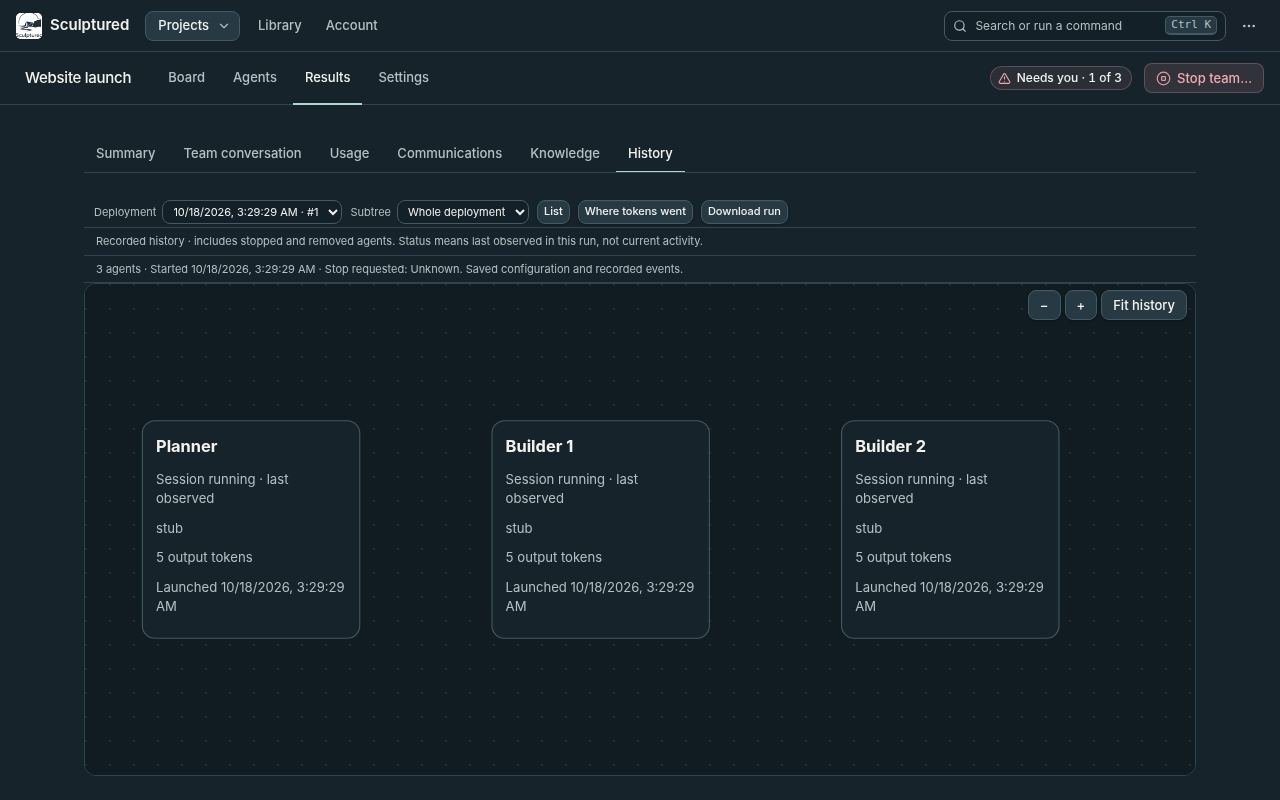
- **Stop team…** asks you to confirm, then stops every running agent. "Their history is kept."
- An agent that could not be stopped is listed with its computer's reason. The others still stop.
- When no agent runs, **Start team** appears in the project's tab row. Every agent gets its Job again as its first message.
- If Sculptured restarted while the team ran, the board asks "N agents stopped mid-work. Resume them where they left off?" Choose **Resume**, **Start fresh** or **Leave stopped**. Nothing relaunches until you answer.
## Next steps
What happens when an agent asks you something.
Send guidance, interrupt, wrap up or stop.
What survives a lost connection mid-run.
Every state and what moves an agent between them.
# Control live agents
Click an agent on the board, or its name on the **Agents** tab, to open its page. Read and message it on its **Conversation** tab, and interrupt or stop it on its **Activity** tab. **Start team** and **Stop team…** in the project's tab row apply to the whole team.
## The agent's page
| Part | What it holds |
| --- | --- |
| **Header** | **Board** (Esc) goes back to the board as you left it. Then the agent's name, its state, and what it runs on (Claude or Codex, and the model). |
| **Conversation** | The transcript (your messages, the agent's replies, its tool calls and their results), then the message box. ⏎ sends, ⇧⏎ adds a line. The search icon in the tab row (or /) searches the transcript. |
| **Setup** | The agent's design: name, what it runs on, Job, folder, connections, and Advanced. See [Compose on the board](/guides/board). |
| **Activity** | **Interrupt**, **Soft stop** and **Hard stop…**, then its check, folder, session number, tokens in and out, and the evidence for its latest status. Below them, **Progress** shows tool calls, files changed, commands and checks as a picture (see [Context and communication](/guides/context)), and **Raw events** shows every recorded event verbatim, the evidence behind everything else. |
Conversation is the first tab once the team has started. Before that, the page opens on Setup.
Notices appear above the transcript when they apply: a question waiting for you, "isn't signed in on the computer", a stall warning, whom it is waiting for, and the reason for its last status change. **Hand over again** is on the Activity tab, and also above the transcript when the agent's CLI was signed out.
## Send guidance
Type in the message box and press ⏎. The **⋯** next to it sets the message's intent:
| Intent | What happens |
| --- | --- |
| **Inform** (default) | Waits for the current turn to end. The agent reads it on its next turn. |
| **Instruct** | May interrupt. With **Interrupt current turn** ticked, the current turn is cut off and the agent reads your message next. |
Each message shows whether it was queued, delivered or read. **Delivered** means the agent's computer accepted the message. **Read** means a turn read it. Neither means the agent did what you asked.
Messages can only go to a running agent. Otherwise the box says why, for example "Status: stopped; messages can only be sent to a running agent."
The first agent of a team without a Job shows "Your next message is this agent's work and starts the team's handoffs." Whatever you send it is the team's work.
## Interrupt, wrap up or stop
Open the agent's **Activity** tab. The controls are at the top.
| Control | What it does |
| --- | --- |
| **Interrupt** (i, on any of the agent's tabs) | Cuts off the current turn so you can redirect the agent. It is off when no turn is in progress, or when this kind of agent can't be interrupted. |
| **Soft stop · ~5K** | Asks the agent to finish the current task, summarize and hand off, then stop. Sculptured stops the session after the wrap-up turn, about 5,000 more output tokens, or 5 minutes, whichever comes first. The button reads **Wrapping up…** meanwhile. |
| **Hard stop…** | Stops the agent's process after you confirm, with no wrap-up turn. Agents it started stop too. "Messages it has not read yet will be marked as not delivered." |
| **Stop team…** (the project's tab row) | Stops every running agent in the team. "Their history is kept." |
Usage reports can arrive late, so a soft stop can go past 5,000 output tokens. The wrap-up message tells the agent never to claim success to finish faster. Still read its summary as agent-reported.
After a soft stop, Activity says "Wrap-up finished; session stopped." When an output budget stopped it, Activity says "Output budget reached; session stopped."
## Stalled agents
Its Conversation tab may show **Stalled (heuristic)** above the transcript, with the reason, when an agent:
- keeps hitting the same error, three times in a row; or
- has had no output for 30 minutes in the middle of its turn, for example a command that never finishes. An agent waiting for your answer to a question is not counted.
This is an inference from recent events, labelled as a heuristic, and the agent also shows under **Needs you**. Sculptured does not intervene automatically. You can:
- **Nudge**: interrupt the agent with a message. One that keeps failing is asked to summarize what it tried and try a different approach; one that went quiet is asked to stop anything that will not finish, say where it is, and continue;
- **Soft stop**: ask it to wrap up.
A silent agent's flag clears as soon as it produces output again.
## Read the state accurately
- **An open, idle session is not working.** "No active work; sessions are open" means nothing is in progress.
- **Unknown is not stopped.** While an agent's computer is unreachable, the agent is *stale*: its activity is the last known one, and it may still be running. See [When the computer drops off](/guides/offline).
- **Run shows the running agents.** The **Agents** tab lists every agent, including stopped and planned ones. The Design board keeps the full design.
- **Each status has evidence.** On the Activity tab, "status" names who said so, such as observed by the computer or inferred by Sculptured.
The full table is in [Agent states](/reference/states).
## Agents that start agents
Agents can create helpers with `spawn_agent`, message each other with `send_agent_message`, and read the team with `team_status`. These helpers are **managed children**:
- they inherit their parent's folder, model and permissions;
- they run on the same computer as their parent;
- they appear on the Run board with their parent. **Focus selected subtree** shows one branch, **Up to parent** widens it, and **Whole tree** goes back.
There are **no limits on children unless you set them**. To set them, open the team's **Settings** tab and then **More settings** (with the team stopped):
| Setting | What it limits | When it is reached |
| --- | --- | --- |
| **Most agents, children included** | Every agent in the team at once: the ones you designed plus every child. | The agent is told "Team limit you set: 20 agents, children included" and carries on without a new child. |
| **Most levels of children** | How deep children may go. 1 lets your agents start children that cannot start their own. | The agent is told "Team limit you set: 3 levels of children". |
Leave a field blank for no limit. When a limit stops a spawn, the parent's card on the Run board says so.
The Run board stays readable with many children. A parent with more than six shows five of them and a **+N more** card that lists the rest. Children below the third level fold into a **+N deeper** card. Either card opens a list of those agents with their status, and each opens that agent. The **Agents** tab always lists every agent. A token limit or the team's output budget still applies to children, so set one of those to cap cost.
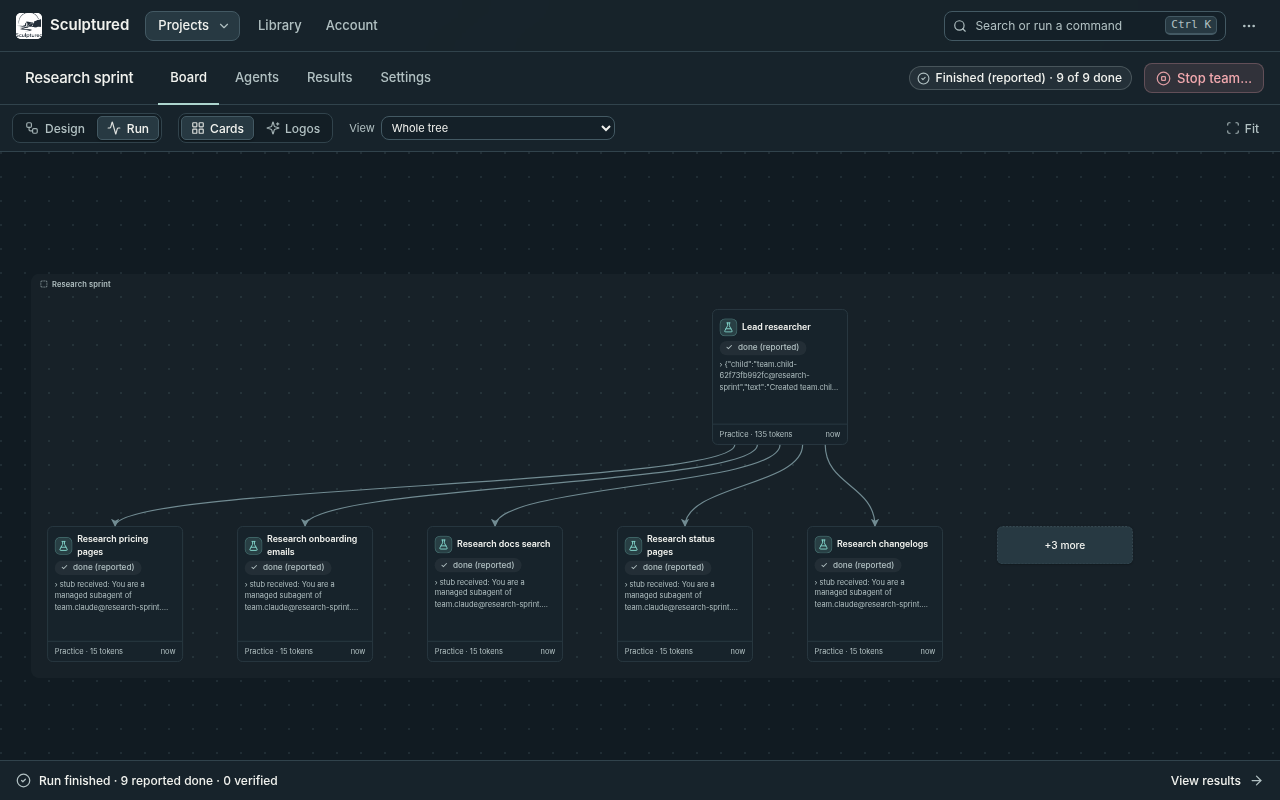
A hard stop of a parent stops its descendants first. Helpers that a CLI starts by itself, and other processes an agent launches, are not managed children. Sculptured does not track or stop them.
## Full screen
**Expand editor** shows on the message box when you point at it or type in it (always on a touch screen). It opens the conversation full screen: the agent's name, the transcript search, the transcript and the message box fill the window, for long reading or writing. What you typed, and where you were in the transcript, stay as they were. **Exit full screen** (or Esc) returns to the agent's page.
The Job box on an agent's Setup tab has its own **Expand editor**, which opens the Job in a full-window editor; **Done** returns to the page.
## Next steps
The Run board, handoffs and Hand over again.
When an agent waits for you.
What an agent saw, and who talked to whom.
Token limits and budgets.
# Budgets and limits
A run of a big team can use a lot of your plan quickly: every agent re-reads its context at every step, and agents can start helpers. A **run budget** keeps one run within what you choose, for example 30% of your Claude 5-hour window. **Agent limits** do the same for one agent and the agents it starts.
Every budget and limit has two values:
- **Soft**: no new work starts, and every agent is asked to wrap up with a summary of what it did and what is left.
- **Hard**: every agent is stopped at once, like pressing Ctrl+C in a terminal. Anything still running two seconds later is ended.
Leave the soft value empty and it is 85% of the hard value. Sculptured sets no budget of its own: nothing is limited until you set it.
```mermaid
stateDiagram-v2
Running --> WrappingUp: "a soft value is reached"
WrappingUp --> Stopped: "a hard value is reached"
Running --> Stopped: "a hard value is reached"
WrappingUp --> Finished: "every agent wrapped up"
```
## Set a run budget
Open the project's **Settings** tab and find **Run budget**.
Fill in a hard value, and a soft value if you want one, for any of: **Claude** or **Codex**, 5-hour window or weekly (a percent of that plan); **Tokens** (every agent's tokens added together); **Time** (minutes from Start).
**Most agents working at once** keeps the rest waiting for a free slot. Fewer agents at once use your plan more slowly, and a stop reaches fewer agents in the middle of a step.
The Start confirmation repeats the budget before anything runs.
## Pause until the window resets
A plan window refills on a schedule: Claude's and Codex's 5-hour windows five hours after they start, the weekly ones each week. Instead of stopping, a plan budget can pause the run and continue it by itself once the window resets, so work that needs more than one window's share still finishes.
Under **Run budget**, a plan budget you have set gets **At the hard value**:
- **Stop** (as before): every agent is stopped.
- **Pause until the window resets**: at the soft value, agents stop at a checkpoint and write a short note of what is done and what is next (`.sculptured/notes/.md` in their folder). At the hard value every agent is stopped, and two minutes after the window resets the agents that were working start again.
Choose how they continue:
| Choice | What happens | Cost |
|---|---|---|
| **From their notes** (fresh start) | Each agent starts a new conversation with its job and its note. | Small: its context starts small again. |
| **Resume their conversation** | Each agent continues its own conversation. | Larger: it re-reads all of it on every step. |
**At most** sets how many windows the run may use (3 unless you change it); after the last, it stops. Token and time budgets don't refill, so they always stop; time spent paused doesn't count toward a time budget.
While the run is paused, the Run board says until when, and offers **Continue now** (the run gets a new share of the window it is in), **Stop**, and the choice of how it continues.
## Set an agent's limits
Select an agent and find **Limits for one run** in its panel. Each row is a soft box, then a hard box:
| Limit | Counts |
|---|---|
| **Tokens** | The agent's tokens in this run. Choose which kinds count, and whether the agents it starts count too (they do by default). |
| **Turns** | How many times it has replied to a message. |
| **Minutes working** | Time spent working, not time waiting. |
At the soft value the agent is asked to wrap up; at the hard value it and every agent it started are stopped at once.
## Watch it on the Run board
While the team runs, the bar under the team's controls shows each run budget: how much is used, where wrap-up comes and where the stop comes. **includes an estimate** means part of the number is Sculptured's estimate since the last plan reading; the age of that reading is shown beside it. Agents held back by **Most agents working at once** are listed under **Waiting for a slot**.
### Raise a limit while the team runs
Each limit on the Run board has **Raise**. Enter a higher value and choose **Raise**, or **Raise and continue** when the run already wrapped up or stopped at that limit: the run goes back to normal and the agents it stopped carry on where they were (an agent still finishing its wrap-up just keeps working). The soft value moves with the hard one, keeping its share.
A raise is for **this run only**. The team's saved budget stays what you planned; change it in **Settings** for the next runs.
An agent's own limits work the same way: when one is reached, **Agent limits** on the Run board lists each agent's token, turn and minute limits, each with **Raise**.
### A cap for the whole computer
Several teams running at once share one plan. On the **Computers** page, **Most agents working at once** sets a cap for each computer, across all its teams; more work waits for a free slot, as with a team's own cap, and the card says *at most N agents work at once on this computer*. Leave it empty for no cap. A team's own cap still applies inside it.
When a budget acts, the bar says which one and why, for example "Wrapping up: Claude 5-hour: 25.6% used, past the run's soft limit of 25.5%".
To stop everything yourself, choose **Stop team…**, then **Stop everything now**. **Confirm stop team** lets each agent close its session first; **Stop everything now** interrupts every agent and the commands it is running at once.
## How the numbers are measured
- **Plan percentages** come from Claude Code and Codex themselves, which report how much of each window your account has used. They count all your use of that plan, including outside Sculptured, so other work in the same window counts against the run. That keeps you on the safe side.
- **Between reports**, Sculptured estimates: it learns how much of the window each token uses from the reports so far (or from your last run) and adds the tokens since the last report.
- **Tokens** are counted as each model call reports them, not only when an agent finishes a reply.
- **A new window**: if your 5-hour window resets during the run, counting starts again in the new window.
## How close to the limit it stops
Claude Code and Codex report usage after each model call, so no tool can promise to stop at exactly 30%. Sculptured always wraps up first, then stops early by about one model call for each agent working at that moment and interrupts at once, so a run usually ends near the hard value; it can pass it by a little when calls are large or plan readings are late. The more agents work at the same time, the larger that margin; **Most agents working at once** keeps it small. A budget covers one run: starting the team again starts a new count.
The stop that interrupts at once and the per-call token count need an up-to-date runner. Reinstall the runner from **Computers** on each computer that runs agents. An older runner still stops agents, within five seconds instead of two, and its Claude usage is counted when each reply ends.
## Leave out what agents don't need
Every Claude agent starts with your own Claude Code setup unless the team leaves it out: the list of every skill you installed, your plugins' instructions, your hooks and MCP servers. Each agent re-reads all of it on every model call. Team **Advanced** → **Claude Code setup for agents** has two switches:
| Switch | Covers | Default |
|---|---|---|
| **Global plugins and settings** | your `~/.claude`: plugins, skills, hooks, settings, MCP servers | off |
| **Project plugins and settings** | the agent folder's `.claude`: its settings, plugins and skills | on |
Sculptured's own agent tools load either way. The setting takes effect the next time an agent starts.
## Protections: keep each agent's context small
Most of a long run's tokens are agents re-reading their own conversation on every step, so a conversation that grows large makes every later step expensive, on any model. Team **Advanced** → **Protections** keeps it small. It is on by default.
| Protection | Default | What the agent sees |
|---|---|---|
| **Refuse reading a whole file larger than** | 100 KB | The read is refused with the file's size and the advice to search it with `grep -n` and read only the lines it needs. Images, PDFs and notebooks are never refused. |
| **Shell output an agent sees, at most** | 8,000 characters | Longer output is saved to a file; the agent gets its path and a short preview. |
| **Continue an agent fresh from its notes at** | 60,000 tokens of context | Between turns, the agent is asked to write its notes (`.sculptured/notes/.md`), then continues in a fresh conversation from them. A turn is never interrupted. |
Claude agents get all three; Codex agents get the context limit only. Every refusal and every fresh continue shows in the agent's conversation.
When Claude Code compacts a Claude agent's conversation within a long turn, a summary can drop parts of the agent's briefing (its role, its contract, who decides what). With protections on, Sculptured gives the briefing back right after each compaction. An idea from Gas Town. An agent on a computer whose runner predates protections runs without them, and its page says so: reinstall the runner from **Computers**.
### Safety rules
Under **Protections**, **Safety rules** refuse tool calls you name, for every Claude agent of the team, with the reason you give. Add a ready-made one, such as no recursive deletes, no reading `.env` or private keys, no force-push, no piping downloads into a shell, no disk formatting, or write your own:
- **Tools**: a regular expression over the tool's name (`Bash`, `Write`, `Read`, …); `.*` for all.
- **Conditions**: one per line, all must hold, in [Signet-Eval](https://github.com/wandercom/signet-eval)'s format: `contains(parameters, 'DROP TABLE')`, `matches(file_path, '\.env$')`, `param_contains(command, 'sudo')`, `any_of(…)`, `param_eq`, `param_ne`, `not(…)`, `or(A || B)`. `parameters` is the whole call; a field name is one part of it.
Sculptured's own guard checks them, with no model call. A rule that cannot be read is shown as a problem on the board and never blocks an agent. For Signet-Eval's own checks as well (its vault, spending limits and locked self-protection), give an agent **Signet-Eval policy checks**; see [Skills and tools](/guides/skills#signet-eval).
## Contracts: what each agent reads, writes and decides
An agent's **Advanced** settings include its **Contract**. Every line is optional:
| Field | What it does |
|---|---|
| **Reads** / **Writes** | Files and folders, one per line, relative to the agent's folder. With protections on, Claude agents' `Read`, `Write` and `Edit` calls outside them are refused with the reason. Shell commands are not checked. The agent's own notes folder is always allowed. |
| **Other effects** | Effects beyond its files, in plain words ("sends email", "pushes to main"), told to the agent |
| **Decides** | Decisions the agent owns. Every agent is told who decides what, and asks the owner before deciding within its domain |
| **Values it shares** | Values other agents rely on, such as a port, an endpoint or a field name, one per line as `name = exact value @ file`. Every start checks each file still contains its value; agents are told what was found, and a value not found is flagged so nobody builds on it. An idea from Constrain. |
| **Its decisions reach** | Its own work, a group, or the whole team. A decision belongs to the agent whose reach contains its consequences, so a choice that crosses groups goes to that owner instead of being agreed between two agents who are each only locally right |
Contracts travel in MADL files as `data_access` and `authority`. MADL also warns when two agents may write the same paths or own the same decision.
## Keeping a large team within a small budget
A team of two dozen agents that reads hundreds of PDF pages can use a whole 5-hour window in half an hour. To stay within a third of it:
- **Let agents read PDFs as text.** The `read_pdf` tool gives agents a PDF's text and names the pages that need to be looked at as images. Reading pages as images costs far more.
- **Set Most agents working at once** to 6 or fewer, and **Most levels of children** to 1, in Advanced.
- **Split the work into stages** across runs, for example reading and planning in one run and building in the next.
- **Start fresh** rather than resuming when the earlier conversations aren't needed: a resumed agent re-reads its whole earlier conversation on every step.
- **Set the budget a little below what you can afford**, for example hard 25% when 30% is your limit, because your other use in the same window counts too.
## In MADL files
A run budget is written on the system, and an agent's limits in its restrictions. A bare number is a hard value; `{ soft, hard }` gives both:
```yaml
system:
id: c172
name: C172 model
budget:
plan: [ { provider: claude, window: five_hour, soft: 25, hard: 30 } ]
tokens: { hard: 50000000 }
wall_clock: { soft: 45m, hard: 1h }
max_working: 6
agents:
- id: parser
settings:
restrictions:
budget: { tokens: { soft: 1000000, hard: 2000000 }, turns: 40, working_time: 30m }
```
See [MADL](/guides/madl) for exporting and importing teams. The design assistant never changes a budget: its proposals keep the run budget and every existing agent's limits as saved.
# Where tokens went
**Where tokens went** explains a run's usage as causes you can act on. It shows how much of every agent's start was setup it did not need, which files agents printed into their own context, how many agents worked at once, and how much of your plan window the run used against its budget.
It is made by [MAIS](https://github.com/Sculptured/Multi-Agent-Investigative-Systems), an open-source reader of Claude Code and Codex session files, on the computer that ran the team. Only the report leaves that computer.
## Open it
On the Run board, open **More** → **Where tokens went**. The report is refreshed every minute while the run goes, and once more after it ends.
Open **More** → **History**, choose the run, then **Where tokens went**. **Agents** goes back to the run's agents.
## What it shows
| Section | What it tells you |
|---|---|
| **What stands out** | A few plain sentences, such as "Your own CLI setup was 41% of the starting context". Each rests on a section below. |
| **Plan window** | Your Claude or Codex window before the run, at its highest, and the points the run added, with the budget's wrap-up and stop marked. |
| **Over time** | Tokens every few seconds and how many agents were making model calls, with the moments many agents started together. |
| **By cause** | Every token of the run: the starting context each agent re-read on every call, what agents added as they worked (files printed, tool results, messages), and what they wrote. |
| **By agent** | Each agent's calls, tokens, starting and final context, and how long it spent in model calls and waiting. A name links to the agent's page. |
| **Costliest in context** | The command outputs and files whose re-reading cost the most, files several agents each read for themselves, the part of every agent's start that was identical, and tools agents were given but never called. |
| **Time** | How long model calls took, and how agents' time divided between model calls, tools and waiting for work. |
Every agent re-reads its whole context on every model call, so something added early costs again on each later call. The report counts that: an item's **re-read** is its size times the calls that re-sent it.
## How sure each number is
A CLI reports what each model call read in total, not what was in it. The report labels every figure:
- **Measured**: the CLI reported it (tokens per call, the plan window, its own cost).
- **Derived**: arithmetic on measured figures, such as a call's rise in context split among what was added just before it.
- **Estimated**: a split by share of characters, such as the first call's context divided among its setup, tool definitions and job.
- **Unknown**: the files do not say. It is shown as unknown, never as zero.
## Use less next time
| If the report says | Try |
|---|---|
| Your own CLI setup is a large share of the start | Leave **Claude Code setup for agents** off (team **Advanced**). It is off unless you turned it on. |
| Files printed are the largest cause of growth | Ask agents in their job to read only the parts of files they need, or give one agent the reading and have it hand out summaries. |
| Many agents started together | Set **Most agents working at once** in the [run budget](/guides/budgets). |
| Several agents read the same file | Put the shared facts in the team's context once, or have one agent read it and hand it over. |
| The run used much of your plan window | Set a [run budget](/guides/budgets) so the run wraps up and stops where you choose. |
## Privacy
MAIS reads the session files on the computer that ran the team. The report carries sizes, causes, the command lines agents ran and the names of the files they read or changed. It does not carry the files' contents or the agents' messages. Passwords, tokens and keys that appear in command lines are masked, and a patch is named by its files, never its text; masking catches common forms only, so a command that printed a secret in an unusual form can still show it in the **Costliest in context** table. On a computer you connected, turn reports off with `sculptured connect --disable usage-reports`.
A computer whose runner was installed before reports existed says so; reinstall the runner from **Computers** to see them.
# Send traces
If you already watch your AI work in an observability tool, Sculptured can send each run there as one trace. Laminar is built in; any collector that takes OTLP over HTTP (Langfuse, Datadog, Honeycomb, your company's own) works the same way. The board stays the main view: traces are a copy for the tools you already have.
Sending is off until you turn it on, team by team.
## Turn it on
Open the team, then **Settings** → **More settings** → **Send traces**.
Leave **Send to** on **Laminar**, or choose **Another OTLP/HTTP collector** and give its address (it usually ends in `/v1/traces`).
Paste the project API key from your tool. Sculptured's server keeps it and sends it only to that address, as `authorization: Bearer `. It is never shown again; the page only says **A key is saved**.
**Timings, tokens and costs** (the default), or **Also prompts and outputs**.
Tick **Send this team's runs as traces** and choose **Save**. The team's latest run (one going now, or the last one if it has finished) is sent from its start, then each new run as it goes.
## What a trace holds
| Span | What it carries |
|---|---|
| **run** | The team. Events for budget changes, questions asked and answered, hand-overs, suspected stalls and checks. |
| **agent** | One per session of an agent: its name, Claude Code or Codex, and the computer. |
| **turn** | The model as observed, tokens in and out (with cache reads and writes), the cost when it is priced, and how the turn ended. Marked as an LLM span. |
| **tool** | The tool's name and whether it failed, under its turn (or the call that started it). |
A turn or tool goes when it ends, an agent span when its session ends, and the run span once the run has stopped and its agents' sessions have ended (or a minute after the stop). If you start the team again before that, the earlier run is still sent whole. A session that never reported its end is closed at the end of the run and marked incomplete.
**Timings, tokens and costs** sends no text from your work, but it does name things: the team's name and id, each agent's name and id, the computer's id, the models, the tools used, and the reasons given for budget changes and suspected stalls.
**Also prompts and outputs** adds, each cut to 4 KB: every turn's input message and the agent's reply, and every tool call's input and output. Tool inputs and outputs include file contents, commands and what they printed. Choose it only if the tool you send to may hold all of that. Switching back to timings applies at once, also to a run that is going.
## When a send fails
A failed send is tried again every few seconds with the same spans, so nothing is lost while the collector is down. The settings show why the last send failed (for example, the key was refused). If the collector stays unreachable for a long time, Sculptured keeps the newest 20,000 spans and says how many it dropped.
## Addresses you can use
- On your own computer: any `https://` address, or `http://` to this computer (`localhost`, `127.0.0.1`) for a collector you run locally.
- In the hosted app: a public `https://` address only. The server will not send to itself or its own network.
Redirects are not followed, so the key reaches only the address you entered. If you change the address, enter the key again: a saved key is never sent to a different address.
# Run from a terminal
A team file runs without the app: `sculptured run` starts the team on this computer, prints a line whenever an agent starts working, finishes a turn, asks something or stops, and ends with an exit code that says how it went.
```sh
sculptured run review-team.madl.yaml --folder ./my-project
```
**Export team file** (the team's **Settings** → **Export**) saves a file that also runs on its own:
```sh
chmod +x review-team.madl.yaml
./review-team.madl.yaml --folder ./my-project
```
Its first line, `#!/usr/bin/env -S sculptured run`, is a comment to every other tool, so the file is still an ordinary [MADL file](/guides/madl).
## Options
| Option | What it does |
| --- | --- |
| `--folder DIR` | Where the agents work (default: the current folder). Agents with a folder of their own keep it. |
| `--input-text TEXT` | The team's Input. |
| `--tokens N`, `--minutes N` | The run's budget. They can only lower what the file sets; a higher value is refused. |
| `--data-dir DIR` | Where the run's records go (default: `~/.sculptured/runs/-