 Sculptured docs
Control live agents
Message an agent, interrupt its current turn, request a summary or stop its session.
Click an agent on the board, or its name on the Agents tab, to open its page. Read and message it on its Conversation tab, and interrupt or stop it on its Activity tab. Start team and Stop team… in the project's tab row apply to the whole team.
The agent's page
| Part | What it holds |
|---|---|
| Header | Board (Esc) goes back to the board as you left it. Then the agent's name, its state, and what it runs on (Claude or Codex, and the model). |
| Conversation | The transcript (your messages, the agent's replies, its tool calls and their results), then the message box. ⏎ sends, ⇧⏎ adds a line. The search icon in the tab row (or /) searches the transcript. |
| Setup | The agent's design: name, what it runs on, Job, folder, connections, and Advanced. See Compose on the board. |
| Activity | Interrupt, Soft stop and Hard stop…, then its check, folder, session number, tokens in and out, and the evidence for its latest status. Below them, Progress shows tool calls, files changed, commands and checks as a picture (see Context and communication), and Raw events shows every recorded event verbatim, the evidence behind everything else. |
Conversation is the first tab once the team has started. Before that, the page opens on Setup.
Notices appear above the transcript when they apply: a question waiting for you, "isn't signed in on the computer", a stall warning, whom it is waiting for, and the reason for its last status change. Hand over again is on the Activity tab, and also above the transcript when the agent's CLI was signed out.
Send guidance
Type in the message box and press ⏎. The ⋯ next to it sets the message's intent:
| Intent | What happens |
|---|---|
| Inform (default) | Waits for the current turn to end. The agent reads it on its next turn. |
| Instruct | May interrupt. With Interrupt current turn ticked, the current turn is cut off and the agent reads your message next. |
Each message shows whether it was queued, delivered or read. Delivered means the agent's computer accepted the message. Read means a turn read it. Neither means the agent did what you asked.
Messages can only go to a running agent. Otherwise the box says why, for example "Status: stopped; messages can only be sent to a running agent."
Interrupt, wrap up or stop
Open the agent's Activity tab. The controls are at the top.
| Control | What it does |
|---|---|
| Interrupt (i, on any of the agent's tabs) | Cuts off the current turn so you can redirect the agent. It is off when no turn is in progress, or when this kind of agent can't be interrupted. |
| Soft stop · ~5K | Asks the agent to finish the current task, summarize and hand off, then stop. Sculptured stops the session after the wrap-up turn, about 5,000 more output tokens, or 5 minutes, whichever comes first. The button reads Wrapping up… meanwhile. |
| Hard stop… | Stops the agent's process after you confirm, with no wrap-up turn. Agents it started stop too. "Messages it has not read yet will be marked as not delivered." |
| Stop team… (the project's tab row) | Stops every running agent in the team. "Their history is kept." |
After a soft stop, Activity says "Wrap-up finished; session stopped." When an output budget stopped it, Activity says "Output budget reached; session stopped."
Stalled agents
Its Conversation tab may show Stalled (heuristic) above the transcript, with the reason, when an agent:
- keeps hitting the same error, three times in a row; or
- has had no output for 30 minutes in the middle of its turn, for example a command that never finishes. An agent waiting for your answer to a question is not counted.
This is an inference from recent events, labelled as a heuristic, and the agent also shows under Needs you. Sculptured does not intervene automatically. You can:
- Nudge: interrupt the agent with a message. One that keeps failing is asked to summarize what it tried and try a different approach; one that went quiet is asked to stop anything that will not finish, say where it is, and continue;
- Soft stop: ask it to wrap up.
A silent agent's flag clears as soon as it produces output again.
Read the state accurately
- An open, idle session is not working. "No active work; sessions are open" means nothing is in progress.
- Unknown is not stopped. While an agent's computer is unreachable, the agent is stale: its activity is the last known one, and it may still be running. See When the computer drops off.
- Run shows the running agents. The Agents tab lists every agent, including stopped and planned ones. The Design board keeps the full design.
- Each status has evidence. On the Activity tab, "status" names who said so, such as observed by the computer or inferred by Sculptured.
The full table is in Agent states.
Agents that start agents
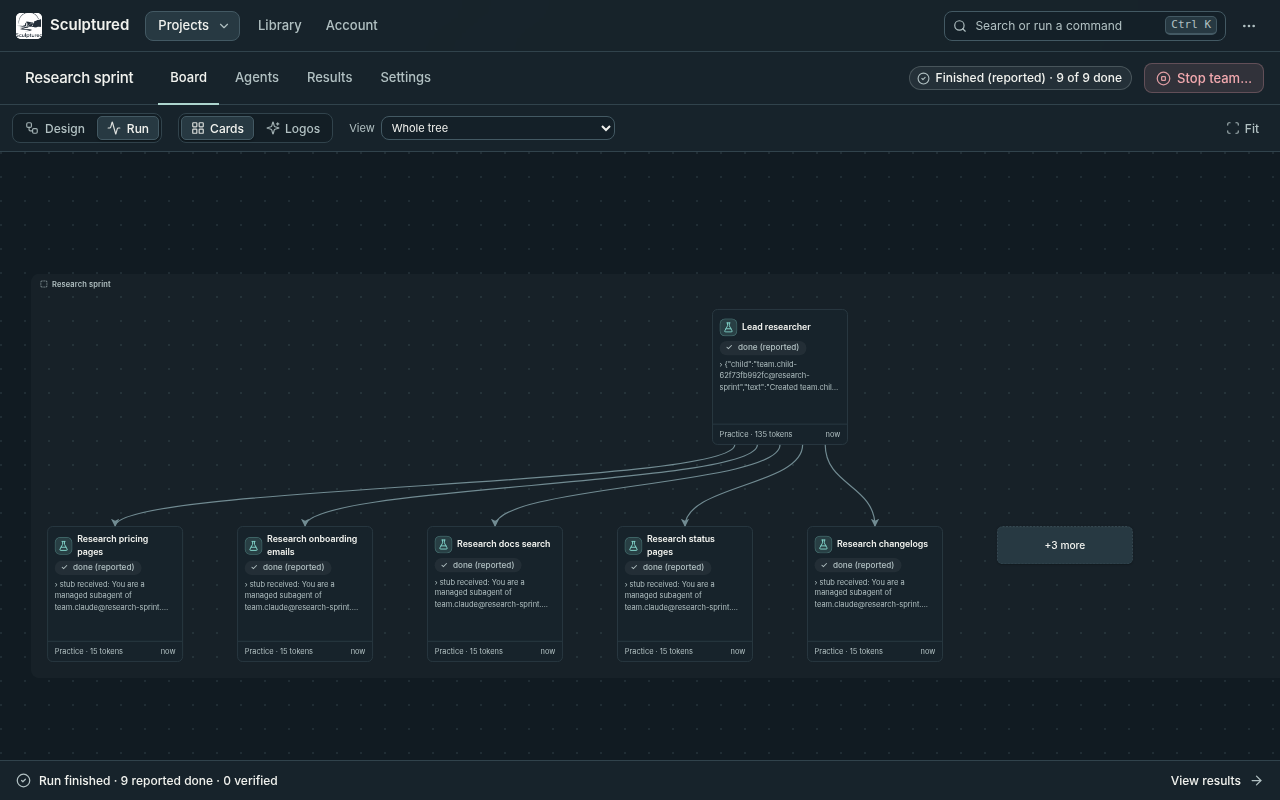
Agents can create helpers with spawn_agent, message each other with send_agent_message, and read the team with team_status. These helpers are managed children:
- they inherit their parent's folder, model and permissions;
- they run on the same computer as their parent;
- they appear on the Run board with their parent. Focus selected subtree shows one branch, Up to parent widens it, and Whole tree goes back.
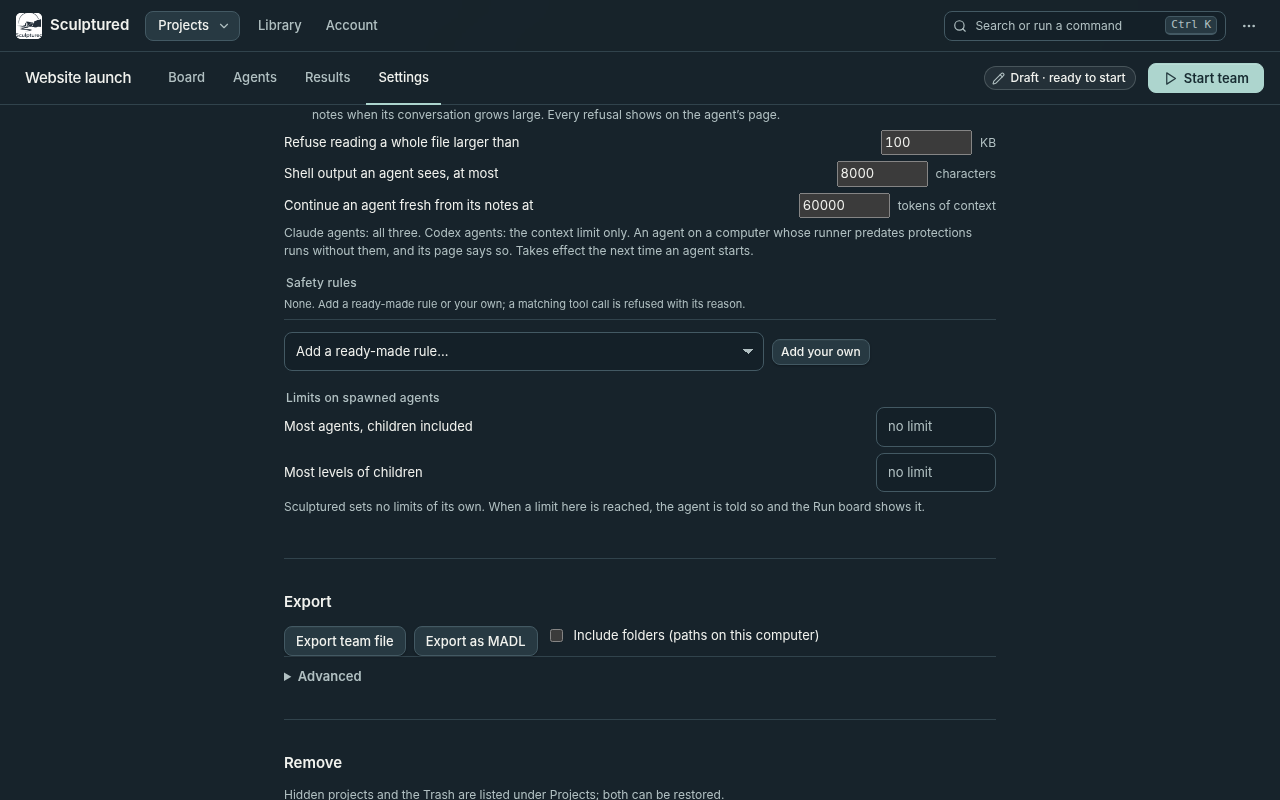
There are no limits on children unless you set them. To set them, open the team's Settings tab and then More settings (with the team stopped):
| Setting | What it limits | When it is reached |
|---|---|---|
| Most agents, children included | Every agent in the team at once: the ones you designed plus every child. | The agent is told "Team limit you set: 20 agents, children included" and carries on without a new child. |
| Most levels of children | How deep children may go. 1 lets your agents start children that cannot start their own. | The agent is told "Team limit you set: 3 levels of children". |
Leave a field blank for no limit. When a limit stops a spawn, the parent's card on the Run board says so.
The Run board stays readable with many children. A parent with more than six shows five of them and a +N more card that lists the rest. Children below the third level fold into a +N deeper card. Either card opens a list of those agents with their status, and each opens that agent. The Agents tab always lists every agent. A token limit or the team's output budget still applies to children, so set one of those to cap cost.
A hard stop of a parent stops its descendants first. Helpers that a CLI starts by itself, and other processes an agent launches, are not managed children. Sculptured does not track or stop them.
Full screen
Expand editor shows on the message box when you point at it or type in it (always on a touch screen). It opens the conversation full screen: the agent's name, the transcript search, the transcript and the message box fill the window, for long reading or writing. What you typed, and where you were in the transcript, stay as they were. Exit full screen (or Esc) returns to the agent's page.
The Job box on an agent's Setup tab has its own Expand editor, which opens the Job in a full-window editor; Done returns to the page.