 Sculptured docs
Quickstart
Set up Sculptured, create a team and follow its first run.
Start with a small task in a project folder you know. This guide uses a Builder → Reviewer team: one agent does the work, then a second reviews the result.
Set up Sculptured
Choose the setup that matches how you want to run the app. Both lead to the same team creation steps below.
Hosted beta
You need a beta invite and a computer with Claude Code or Codex installed. The runner supports Windows on 64-bit Intel or AMD, macOS 11 or later, and Linux; the Computers page lists available builds.
- Open your invite link. Enter your name, email and a password of at least 12 characters, then choose Create account. For later visits, sign in at app.usesculptured.com.
- Open Computers from the ⋯ menu at the top right. Under Connect a computer, select the system of the computer that will run your agents and choose Copy connect command.
- Open a terminal on that computer—PowerShell on Windows—paste the command and press Enter.
- Return to Computers and wait for Connected. Check that Claude Code or Codex is installed and signed in; use the sign-in controls if needed.
The command installs the runner without admin rights and allows agents to start in your home folder. The runner stays in the background and starts again when you log in. See Connect a computer for installation details and folder access.
Self-hosted
You need Linux or an Apple silicon Mac, Rust 1.95 or newer, Node.js 24 and Git. Install Claude Code or Codex and sign in as the user who will run Sculptured.
git clone https://github.com/Sculptured/Sculptured.git
cd Sculptured
npm --prefix web ci
npm --prefix web run build
cargo run --release -p sculptured -- serve
Open http://127.0.0.1:4410. The server starts a local runner, so you do not need to connect a computer or create an account.
For backups, upgrades and other server options, see Run it yourself.
Create your first team
- Choose a template
Choose New project on the Projects page, or under Projects in the top bar. Set Agents run on to Claude or Codex, then select Builder → Reviewer.
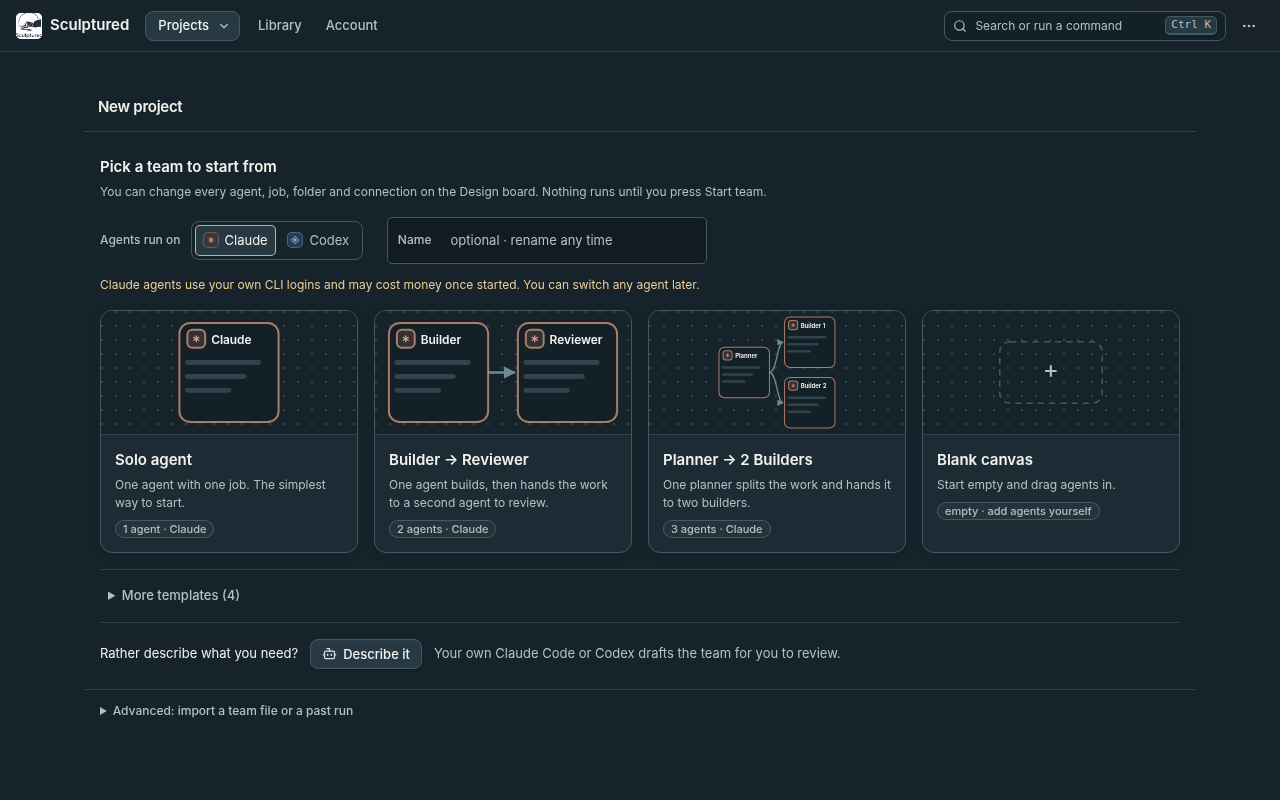
Choose an agent provider, then a template. - Choose the working folder
The project opens on the Design board.
- Hosted: use Folder on your computer to enter a full path, such as
/home/you/projectorC:\Users\you\project, or choose Browse…. Select a computer under Run on if more than one is connected. With one connected computer, Automatic uses it. An empty folder field uses that computer's first allowed folder. - Self-hosted: choose Project folder. Agents use this folder unless you give an agent its own.
- Hosted: use Folder on your computer to enter a full path, such as
- Write the jobs
Open each agent and edit its Job. Give the builder a specific task and tell the reviewer what to inspect. Include how the result should be checked.
For example, ask the builder to fix one reproducible bug and add a regression test. Ask the reviewer to inspect the change, run the relevant tests and report any remaining issues.
The project's status, next to Start team in the tab row, reads Draft · N to fix while required details are missing; Things to fix on the Design board lists them. Draft · ready to start means the team can start; it does not assess the quality of the jobs.
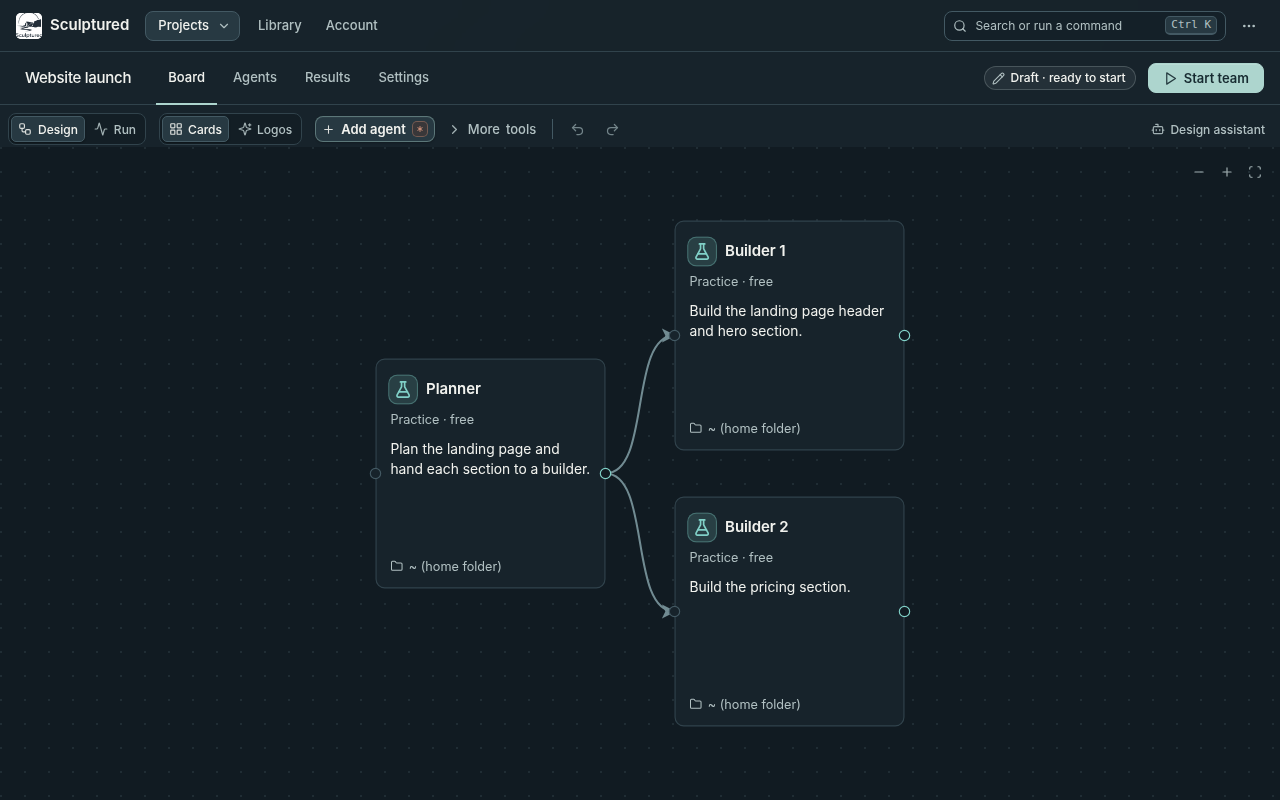
The Design board shows each agent's Job and whether the team is ready to start.
Run and review the team
- Start the team
Choose Start team, at the right of the project's tab row, and review the confirmation. Agents use your own Claude Code or Codex sign-in and may incur charges or consume plan usage. You can set a per-agent Token limit before starting; see Limits and usage.
Once you confirm, Sculptured opens the Run view. The builder receives its Job first. When it finishes a work turn, its final reply is passed to the reviewer along with the reviewer's Job.
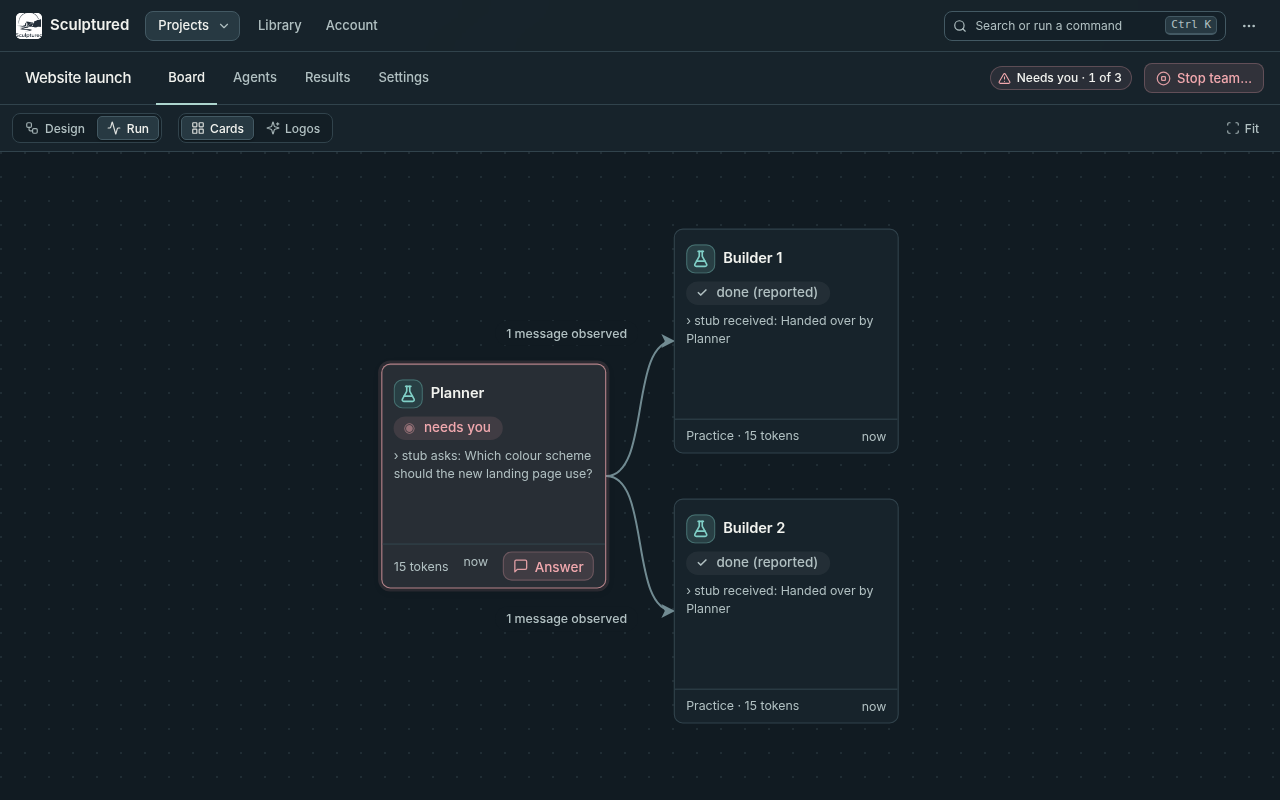
The Run board shows each agent's state. Answer opens an agent's pending question. - Follow the work
Open an agent to read its conversation and tool calls. Send guidance through its message box, or open Results › Team conversation to follow updates across the team.
If an agent shows needs you, choose Answer and respond on the question card. Use Allow or Deny for a tool approval. Questions and approvals have timeouts; Questions and approvals explains what happens when they expire.
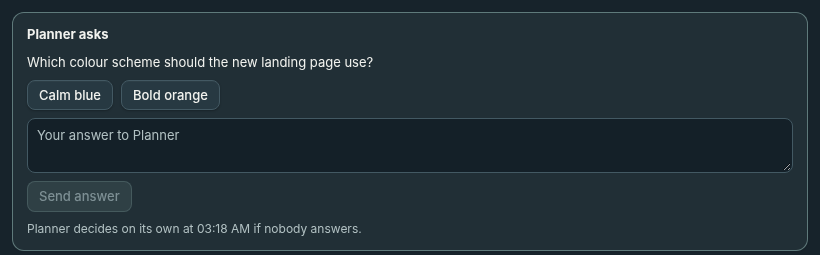
Answer on the question card, using a choice or your own words where offered. - Review the result and stop
Read the reviewer's findings and inspect the changes and check results. An agent marked done has finished a turn; that alone does not establish that the work is correct.
Choose Stop team and confirm to close the agents' sessions. Sculptured keeps the run history for later review.
If an agent cannot start
If an agent says Claude Code or Codex isn't signed in on the computer, use its Sign in action and complete the provider's sign-in. Then choose Hand over again or Restart this agent, as offered. See Troubleshooting for other startup problems.
To use both providers in one team, stop the team, open an agent and change Runs on to Claude or Codex.